> For clean Markdown of any page, append .md to the page URL.
> For a complete documentation index, see https://docs.id.me/llms.txt.
> For AI client integration (Claude Code, Cursor, etc.), connect to the MCP server at https://docs.id.me/_mcp/server.
# Android WebView requirements
> Configure Android WebViews for IDMe document upload, selfie capture, and liveness.
Use this guide when your Android app opens an IDMe OAuth 2.0 verification workflow in a WebView. Android integrations must handle camera permission checks before handing IDMe document upload, selfie capture, or liveness capture to native camera functionality.
## Verification stages
Document upload starts when the user clicks a document upload or **Take Photo** button. If live document capture is required, the app must request camera permission before launching `MediaStore.ACTION_IMAGE_CAPTURE`.
Selfie and liveness capture also require camera permission. There is no gallery-upload alternative for these steps, so permission denial must keep the user in a recoverable state with a retry or settings path.
## Required permission
**`AndroidManifest.xml`**
```xml AndroidManifest.xml
```
## Document upload
IDMe pages use file inputs for document capture. Android WebView delegates those inputs to the native app through `WebChromeClient.onShowFileChooser`.
Check camera permission every time before opening native camera capture. If permission is denied, do not launch the camera intent.
**`Android WebView file chooser`**
```kotlin Android WebView file chooser
class VerificationActivity : AppCompatActivity() {
private var pendingFileChooser: ValueCallback>? = null
private var cameraOutputUri: Uri? = null
override fun onCreate(savedInstanceState: Bundle?) {
super.onCreate(savedInstanceState)
webView.webChromeClient = object : WebChromeClient() {
override fun onShowFileChooser(
webView: WebView,
filePathCallback: ValueCallback>,
fileChooserParams: FileChooserParams
): Boolean {
pendingFileChooser?.onReceiveValue(null)
pendingFileChooser = filePathCallback
return if (hasCameraPermission()) {
launchDocumentCamera()
true
} else {
requestCameraPermission()
true
}
}
}
}
private fun hasCameraPermission(): Boolean {
return ContextCompat.checkSelfPermission(
this,
Manifest.permission.CAMERA
) == PackageManager.PERMISSION_GRANTED
}
private fun requestCameraPermission() {
ActivityCompat.requestPermissions(
this,
arrayOf(Manifest.permission.CAMERA),
REQUEST_CAMERA_PERMISSION
)
}
override fun onRequestPermissionsResult(
requestCode: Int,
permissions: Array,
grantResults: IntArray
) {
super.onRequestPermissionsResult(requestCode, permissions, grantResults)
if (requestCode != REQUEST_CAMERA_PERMISSION) return
if (grantResults.firstOrNull() == PackageManager.PERMISSION_GRANTED) {
launchDocumentCamera()
} else {
handleCameraPermissionDenied()
}
}
}
```
## Permission denial and settings recovery
If the user denies camera permission, cancel the pending file chooser callback and keep the user in the WebView. If Android reports that the permission can still be requested, show an explanation and let the user retry. If the permission is permanently denied, show an **Open Settings** action. Run this check on each camera entry point, including after the user disables camera access in app settings and starts a new verification session.
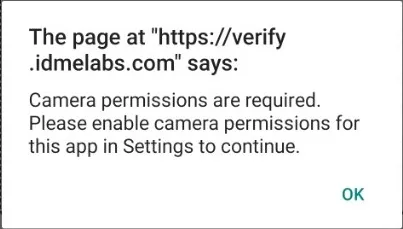
IDMe may also show a permission guard inside the WebView when camera access is unavailable. This guard prevents the page from handing off to native camera capture when permission is blocked, but the host app still needs to provide the settings recovery path.
**`Android camera permission result`**
```kotlin Android camera permission result
private fun handleCameraPermissionDenied() {
pendingFileChooser?.onReceiveValue(null)
pendingFileChooser = null
val canAskAgain = ActivityCompat.shouldShowRequestPermissionRationale(
this,
Manifest.permission.CAMERA
)
if (canAskAgain) {
showCameraRetryDialog(
onRetry = { requestCameraPermission() },
onCancel = { /* Keep the user in the verification workflow. */ }
)
} else {
showCameraSettingsDialog(
onOpenSettings = {
waitingForCameraSettingsReturn = true
openAppSettings()
},
onCancel = { /* Keep the user in the verification workflow. */ }
)
}
}
```
Open the app's settings page with `Settings.ACTION_APPLICATION_DETAILS_SETTINGS`.
**`Android app settings`**
```kotlin Android app settings
fun openAppSettings() {
val intent = Intent(Settings.ACTION_APPLICATION_DETAILS_SETTINGS).apply {
data = Uri.fromParts("package", packageName, null)
}
startActivity(intent)
}
override fun onResume() {
super.onResume()
if (waitingForCameraSettingsReturn && hasCameraPermission()) {
waitingForCameraSettingsReturn = false
launchDocumentCamera()
}
}
```
If your app exposes an IDMe WebView bridge, let the page request the same settings action.
**`Android WebView settings bridge`**
```kotlin Android WebView settings bridge
class IDmeNativeBridge(private val activity: VerificationActivity) {
@JavascriptInterface
fun openAppSettings(permission: String) {
if (permission == "camera") {
activity.runOnUiThread {
activity.openAppSettings()
}
}
}
}
webView.settings.javaScriptEnabled = true
webView.addJavascriptInterface(IDmeNativeBridge(this), "IDmeNative")
```
> **Warning**
>
> Only expose JavaScript interfaces from trusted WebView origins. Do not add broad native bridges to untrusted content.
## Camera output URI grants
When your app captures a document image into an output URI, grant URI access explicitly.
**`Android URI grants`**
```kotlin Android URI grants
private fun launchDocumentCamera() {
val outputUri = createDocumentImageUri()
cameraOutputUri = outputUri
val intent = Intent(MediaStore.ACTION_IMAGE_CAPTURE).apply {
putExtra(MediaStore.EXTRA_OUTPUT, outputUri)
addFlags(Intent.FLAG_GRANT_READ_URI_PERMISSION)
addFlags(Intent.FLAG_GRANT_WRITE_URI_PERMISSION)
clipData = ClipData.newUri(
contentResolver,
"ID.me document capture",
outputUri
)
}
startActivityForResult(intent, REQUEST_DOCUMENT_CAPTURE)
}
override fun onActivityResult(requestCode: Int, resultCode: Int, data: Intent?) {
super.onActivityResult(requestCode, resultCode, data)
if (requestCode != REQUEST_DOCUMENT_CAPTURE) return
val result = if (resultCode == RESULT_OK && cameraOutputUri != null) {
arrayOf(cameraOutputUri!!)
} else {
null
}
pendingFileChooser?.onReceiveValue(result)
pendingFileChooser = null
cameraOutputUri = null
}
```
> **Warning**
>
> Android logs may warn that implicit URI read and write grants for image capture will be discontinued in future Android versions. Set read and write grants explicitly and provide `ClipData` for the output URI.
## Liveness and selfie capture
Start selfie or liveness capture only after camera permission is granted.
**`Android liveness permission gate`**
```kotlin Android liveness permission gate
private fun startLivenessWhenReady() {
if (hasCameraPermission()) {
launchIdmeLiveness()
} else {
requestCameraPermission()
}
}
```
## Testing checklist
* Grant camera permission and complete document upload.
* Deny camera permission once, retry, grant permission, and complete document upload.
* Permanently deny camera permission and confirm the app settings path works.
* Disable camera permission in app settings, return to a new verification session, and confirm the app re-checks permission before opening capture.
* Return from app settings, re-check camera permission, and continue capture only when permission is granted.
* Confirm any WebView settings bridge is restricted to trusted IDMe pages.
* Confirm the camera output URI has explicit read and write grants.
* Complete selfie or liveness capture after granting permission.
* Deny permission before selfie or liveness and confirm the app does not start capture.