

AWS Cognito OIDC integration guide
Overview
This guide provides steps to integrate AWS Cognito with ID.me using the OpenID Connect (OIDC) protocol.
Intended audience
Developers and IAM administrators responsible for configuring federation between AWS Cognito and ID.me.
What you will build
A federated authentication flow where AWS Cognito delegates user authentication to ID.me.
Result
A federated OIDC authentication flow where AWS Cognito delegates authentication to ID.me.
Identity proofing behavior
Authentication behavior, identity verification settings, and returned attributes are driven by ID.me policy configurations.
Authentication flow
The following steps outline the OIDC authentication flow between the user, AWS Cognito, and ID.me:
Prerequisites
- Access to an AWS account (sign up at
https://aws.amazon.com/cognito/if needed) - Administrator permissions to create and configure AWS Cognito User Pools
- An ID.me sandbox account for testing your integration
- Understanding of OIDC flows and terminology
- An application to test the sign-in flow (for example, a locally-hosted app at
http://localhost:8080/v1/idme/callback)
Environments
ID.me provides two environments:
All ID.me OIDC and SAML endpoints are derived from the base URL above. For production, replace the sandbox base URL in every ID.me endpoint you configure.
Examples
- OIDC issuer (Sandbox):
https://api.idmelabs.com/oidc - OIDC issuer (Production):
https://api.id.me/oidc - SAML metadata URL (Sandbox):
https://api.idmelabs.com/saml/metadata - SAML metadata URL (Production):
https://api.id.me/saml/metadata
Configure AWS Cognito
Create a User Pool
Configure ID.me as an OpenID Connect identity provider
In the left-hand column, select Social and external providers > Add identity provider > OpenID Connect (OIDC)
Configure the provider with the following settings:
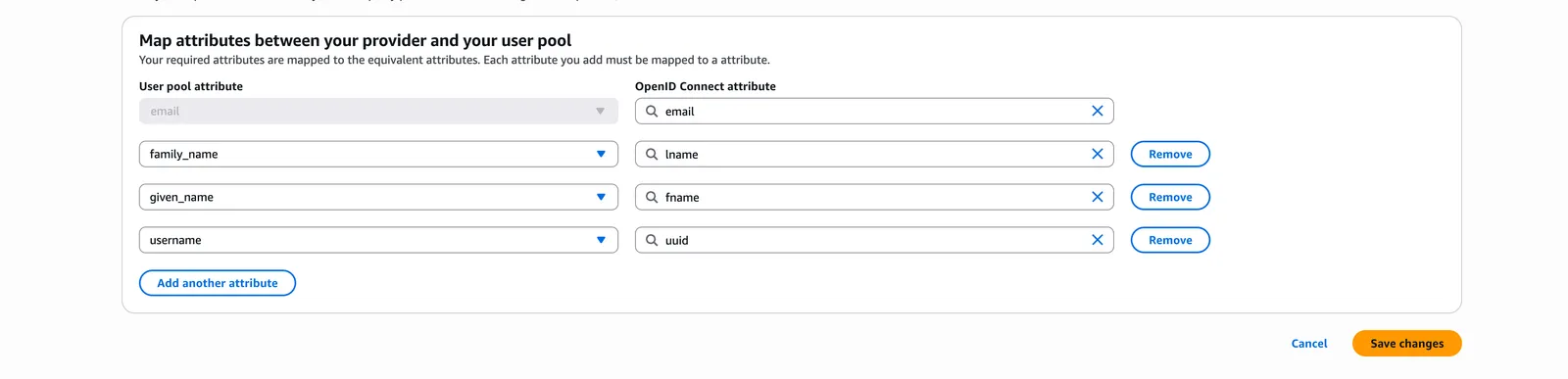
Cognito automatically fetches endpoints from /.well-known/openid-configuration when you use the Auto fill option. Ensure the populated endpoints look correct.
Configure App Client settings
Configure ID.me
This portion of the configuration is completed by an ID.me Solution Consultant. You will need to provide the following information to complete the setup:
Redirect URIs
The AWS Cognito redirect URI typically follows this pattern:
https://\<your-cognito-domain\>.auth.\<region\>.amazoncognito.com/oauth2/idpresponse
You can find your Cognito domain by navigating to Cognito > Branding > Domain in the AWS admin panel. Be sure to append /oauth2/idpresponse to the end of the domain.
Policy handle name
Confirm the ID.me policy handle. This value is included in the Authorized scopes field in Cognito (e.g., openid <policy_handle>).
Test the integration
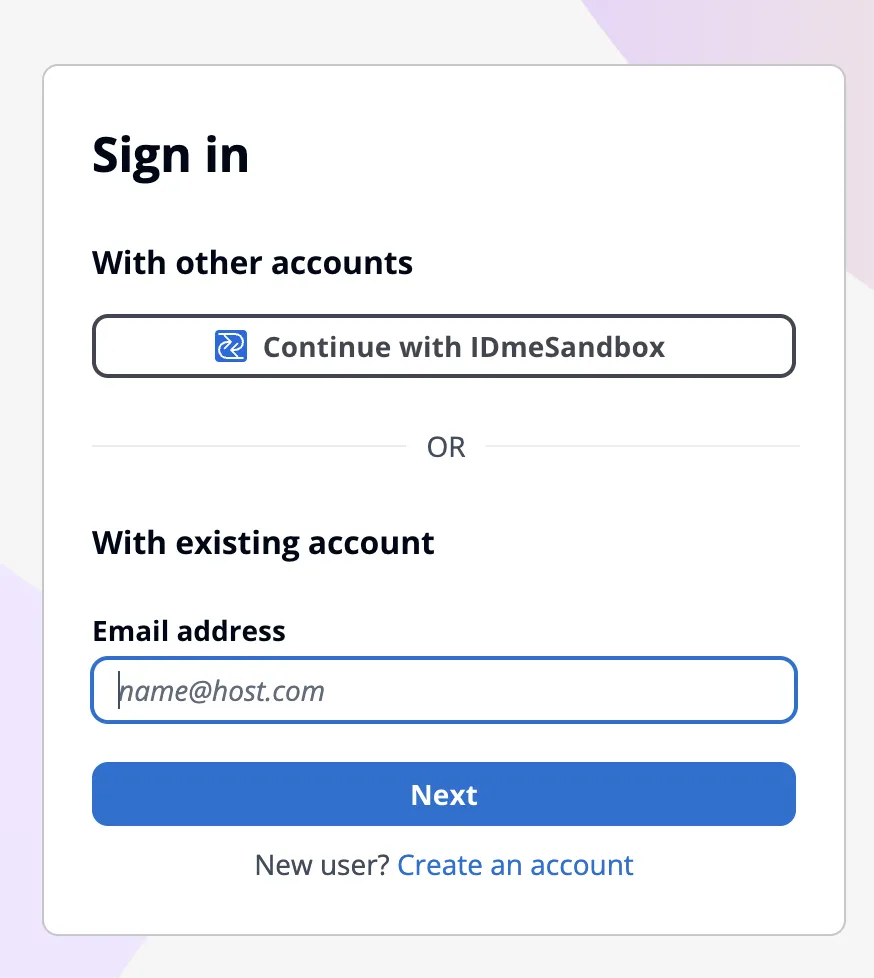
Option 1: Launch from Cognito Hosted UI
Option 2: Direct authorize URL
Construct the URL manually and paste it into your browser.
Troubleshooting
redirect_uri_mismatch
Possible Cause: Callback URL not listed in Cognito.
Resolution: Ensure the redirect_uri in your request exactly matches the Allowed Callback URL configured in the Cognito App Client settings (e.g., http://localhost:8080/v1/idme/callback).
invalid_client
Possible Cause: Wrong Client ID or Secret in Cognito.
Resolution: Verify the Client ID and Client Secret entered in the Cognito Identity Provider settings match the credentials from your ID.me Consumer.
no such IdP
Possible Cause: Provider name mismatch.
Resolution: Confirm that the identity_provider parameter in your request (e.g., IDmeSandbox) matches the Provider Name configured in Cognito.
User attributes missing
Possible Cause: Claims not mapped.
Resolution: Revisit the Attribute mapping step in the Cognito Identity Provider configuration and ensure ID.me claims are correctly mapped to Cognito user pool attributes.