Keycloak OIDC integration guide

Configure Keycloak to use ID.me as an OpenID Connect identity provider.

Overview

This guide provides steps to integrate Keycloak with ID.me using the OpenID Connect (OIDC) protocol.

Intended audience
Developers and IAM administrators responsible for configuring federation between Keycloak and ID.me.

What you will build
A federated authentication flow where Keycloak delegates user authentication to ID.me.

Result
A federated OIDC authentication flow where Keycloak delegates authentication to ID.me, allowing users to sign in to a target application.

Identity proofing behavior
Authentication behavior, identity verification settings, and returned attributes are driven by ID.me policy configurations.

Authentication flow

The following steps outline the OIDC authentication flow between the user, Keycloak, and ID.me:

1

The user navigates to the Keycloak-hosted landing page

2

The user selects the IDMe-Sandbox option

3

Keycloak redirects the user to ID.me

4

The user completes authentication and identity verification at ID.me

5

ID.me redirects the user back to Keycloak with an authorization code

6

Keycloak exchanges the code for tokens

7

Keycloak redirects the user to the target application (for example, jwt.ms) with the final ID token

Prerequisites

  • A running instance of Keycloak (Docker is recommended for easy installation)
  • Administrator access to the Keycloak admin console
  • An ID.me sandbox account for testing your integration
  • Understanding of OIDC flows and terminology

Environments

ID.me provides two environments:

Sandbox

https://api.idmelabs.com/

Production

https://api.id.me/

All ID.me OIDC and SAML endpoints are derived from the base URL above. For production, replace the sandbox base URL in every ID.me endpoint you configure.

Examples

  • OIDC issuer (Sandbox): https://api.idmelabs.com/oidc
  • OIDC issuer (Production): https://api.id.me/oidc
  • SAML metadata URL (Sandbox): https://api.idmelabs.com/saml/metadata
  • SAML metadata URL (Production): https://api.id.me/saml/metadata

Configure Keycloak

Create a realm

1

Log in to the Keycloak admin console (default http://localhost:8080)

2

Click the realm dropdown in the top left corner (the default is “Master”)

3

Select Create Realm

4

Enter a Realm name (for example, myrealm)

5

Select Create

Configure ID.me as an OpenID Connect identity provider

1

Navigate to Identity Providers in the left menu

2

Select Add provider > OpenID Connect v1.0

3

Configure the identity provider settings:

FieldValue
Aliasidme-sandbox
Display NameIDMe-Sandbox
Use Discovery EndpointOn
Discovery Endpointhttps://api.idmelabs.com/.well-known/openid-configuration
Client IDThe Client ID provided by your ID.me Solution Consultant.
Client SecretThe Client Secret provided by your ID.me Solution Consultant.
Client AuthenticationClient secret sent as post
Validate SignaturesOn
Scopesopenid <policy_handle> (Replace <policy_handle> with your specific ID.me policy handle, e.g., nist_aal2_ial2)

After entering the Discovery Endpoint, Keycloak may automatically populate metadata fields. Verify them against the values above.

4

Select Add or Save

Map user claims

1

Navigate to Identity Providers > idme-sandbox > Mappers

2

Select Create

3

Configure the mapper:

  • Name: Enter a name for the mapper (e.g., firstName)
  • Sync mode override: Select Force
  • Mapper type: Select Attribute Importer
  • Claim: Enter the name of the ID.me claim (e.g., fname)
  • User Attribute name: Select firstName (or type a custom attribute name)
4

Select Save

5

Repeat these steps for other claims as necessary (e.g., lname to lastName, email to email)

Configure a target app

1

Navigate to Clients > Create Client

2

Set Client type to OpenID Connect

3

Enter a Client ID (e.g., TestApp) and select Next

4

Toggle Client authentication to On (or Off for public clients like jwt.ms)

5

Toggle Implicit flow to On (recommended for testing with jwt.ms)

6

Select Next

7

In Valid redirect URIs, enter your application’s redirect URI (e.g., https://jwt.ms)

8

Select Save

Configure ID.me

This portion of the configuration is completed by an ID.me Solution Consultant. You will need to provide the following information to complete the setup:

Redirect URIs

The Keycloak redirect URI typically follows this pattern:
http://localhost:8080/realms/<your realm name>/broker/idme-sandbox/endpoint

Ensure the port (8080) and domain match your specific Keycloak deployment. The idme-sandbox segment must match the Alias you configured in the Identity Provider settings.

Policy handle name

The ID.me policy handle (e.g., nist_aal2_ial2 or teacher). This value corresponds to the policy configured in your ID.me Consumer and should be included in the Scopes field in Keycloak.

Test the integration

Option 1: Log in to Keycloak account console

1

Navigate to the Keycloak account console:
http://localhost:8080/realms/<your realm name>/account

2

Select Sign In

3

On the login screen, select IDMe-Sandbox

4

Complete the authentication and verification at ID.me

5

You should be redirected back to the Keycloak account console as a logged-in user

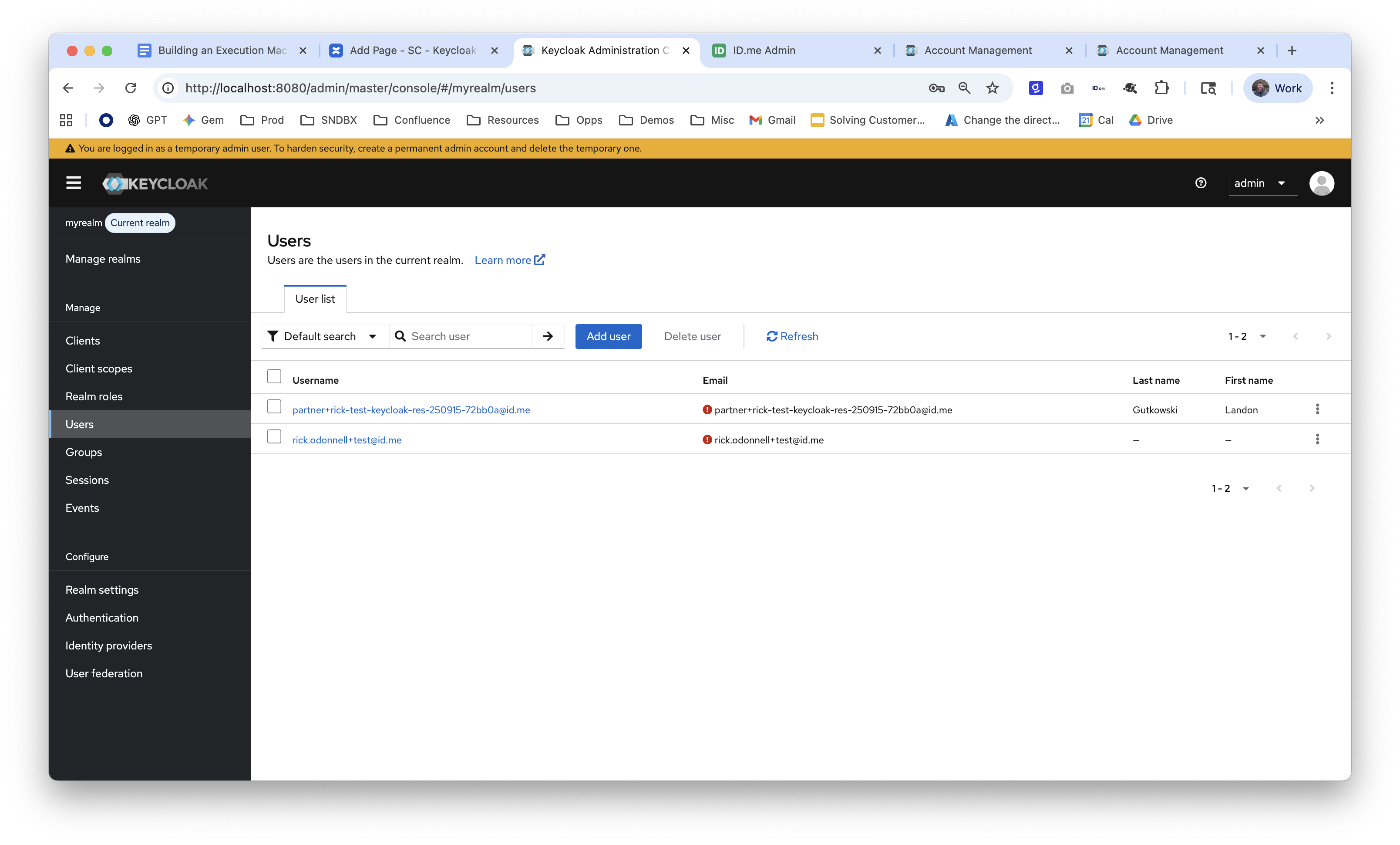
Screenshot of the Users list in the Keycloak Administration Console for "myrealm," showing two provisioned users with ID.me email addresses, confirming successful federated user creation after sign-in.

Option 2: Manually construct URL

Construct an authorization URL to test the flow with a tool like jwt.ms.

Copy the following URL pattern and replace the placeholders:
http://localhost:8080/realms/<your realm name>/protocol/openid-connect/auth?client_id=<your client id>&redirect_uri=https%3A%2F%2Fjwt.ms&response_type=id_token&scope=openid%20profile%20email&nonce=test123&state=abc123
1

Paste the modified URL into your browser

2

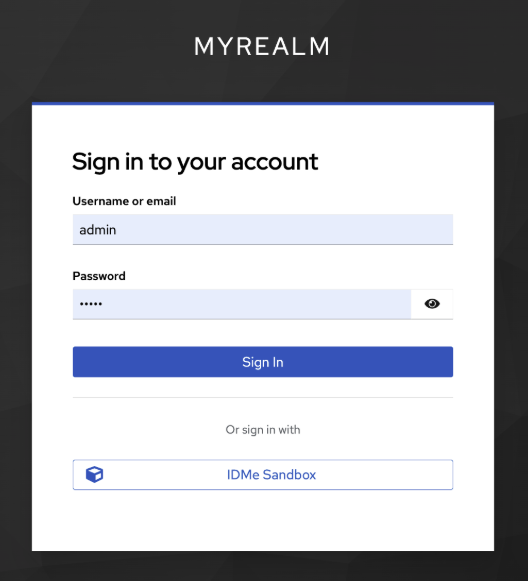
You should see the Keycloak login screen:

Screenshot of the Keycloak "MYREALM" sign-in page, showing a username/password form with "admin" entered, and an "IDMe Sandbox" federated login option below.

3

Select the IDMe-Sandbox button

4

Complete login and verification at ID.me

5

If the user exists, you will be logged in. If not, the account will be automatically provisioned in Keycloak.

Screenshot of the Users list in the Keycloak Administration Console for "myrealm," showing two provisioned users with ID.me email addresses, confirming successful federated user creation after sign-in.