

Keycloak SAML integration guide
Overview
This guide provides steps to integrate Keycloak with ID.me using the SAML 2.0 protocol.
Intended audience Developers and IAM administrators responsible for configuring federation between Keycloak and ID.me.
What you will build A federated authentication flow where Keycloak delegates user authentication to ID.me using SAML 2.0 assertions.
Result A federated SAML authentication flow where Keycloak delegates authentication to ID.me, allowing users to sign in to a target application.
Identity proofing behavior Authentication behavior, identity verification settings, and returned attributes are driven by ID.me policy configurations.
Authentication flow
The following steps outline the SAML authentication flow between the user, Keycloak, and ID.me:
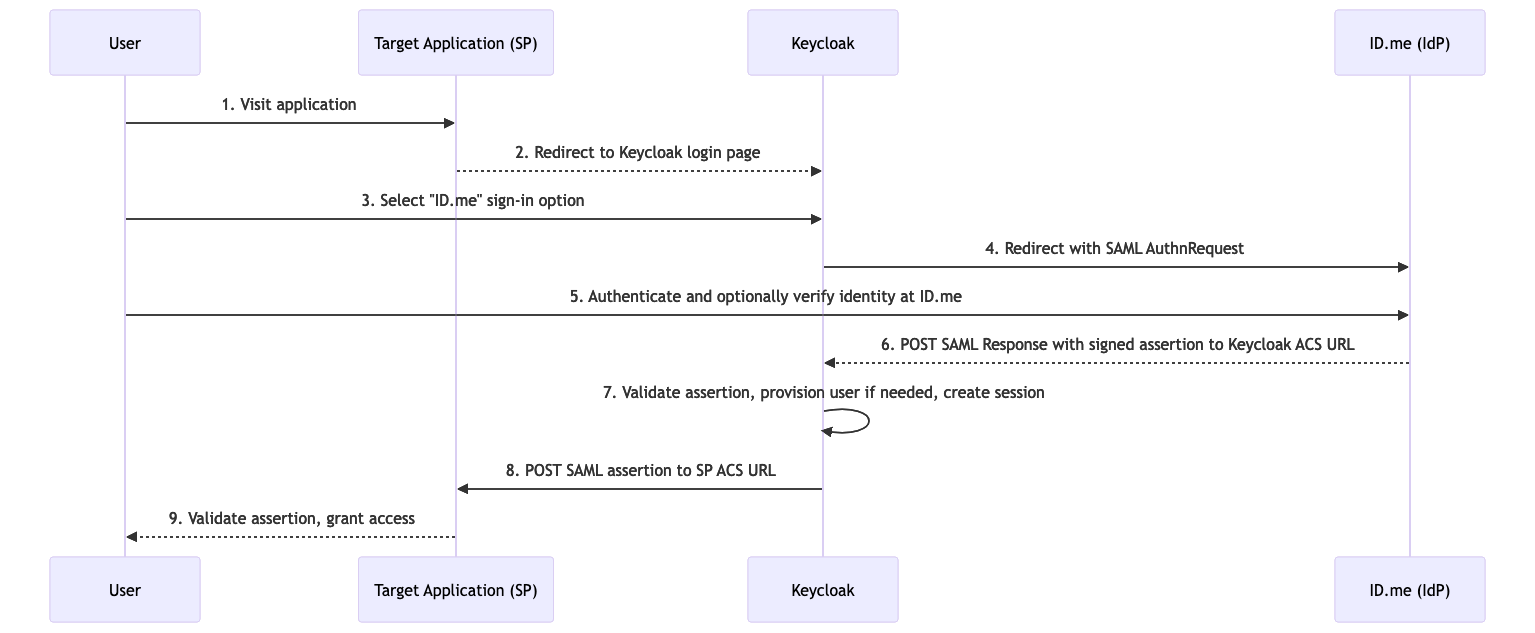
Prerequisites
- A running instance of Keycloak
- Administrator access to the Keycloak admin console
- An ID.me sandbox account for testing your integration
- Understanding of SAML flows and terminology
Environments
ID.me provides two environments:
All ID.me OIDC and SAML endpoints are derived from the base URL above. For production, replace the sandbox base URL in every ID.me endpoint you configure.
Examples
- OIDC issuer (Sandbox):
https://api.idmelabs.com/oidc - OIDC issuer (Production):
https://api.id.me/oidc - SAML metadata URL (Sandbox):
https://api.idmelabs.com/saml/metadata - SAML metadata URL (Production):
https://api.id.me/saml/metadata
Configure Keycloak
Create a realm
Configure ID.me as a SAML identity provider
Fill in the following fields. When you enter the SAML entity descriptor URL and tab out of the field, Keycloak fetches the ID.me metadata and auto-populates the remaining SAML settings.
Select Show metadata to expand and review the values Keycloak auto-populated from the ID.me metadata URL. Most fields are populated correctly from the metadata. Verify or update the following fields:
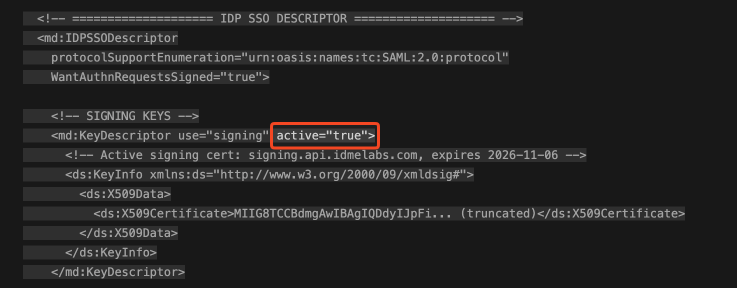
By default, Keycloak may auto-populate an inactive certificate from the ID.me metadata URL because ID.me uses an active=true XML element during certificate transitions to avoid downtime. Keycloak ignores that custom XML element, so you must manually verify that the active ID.me signing certificate is entered in the Validating X509 Certificates field.
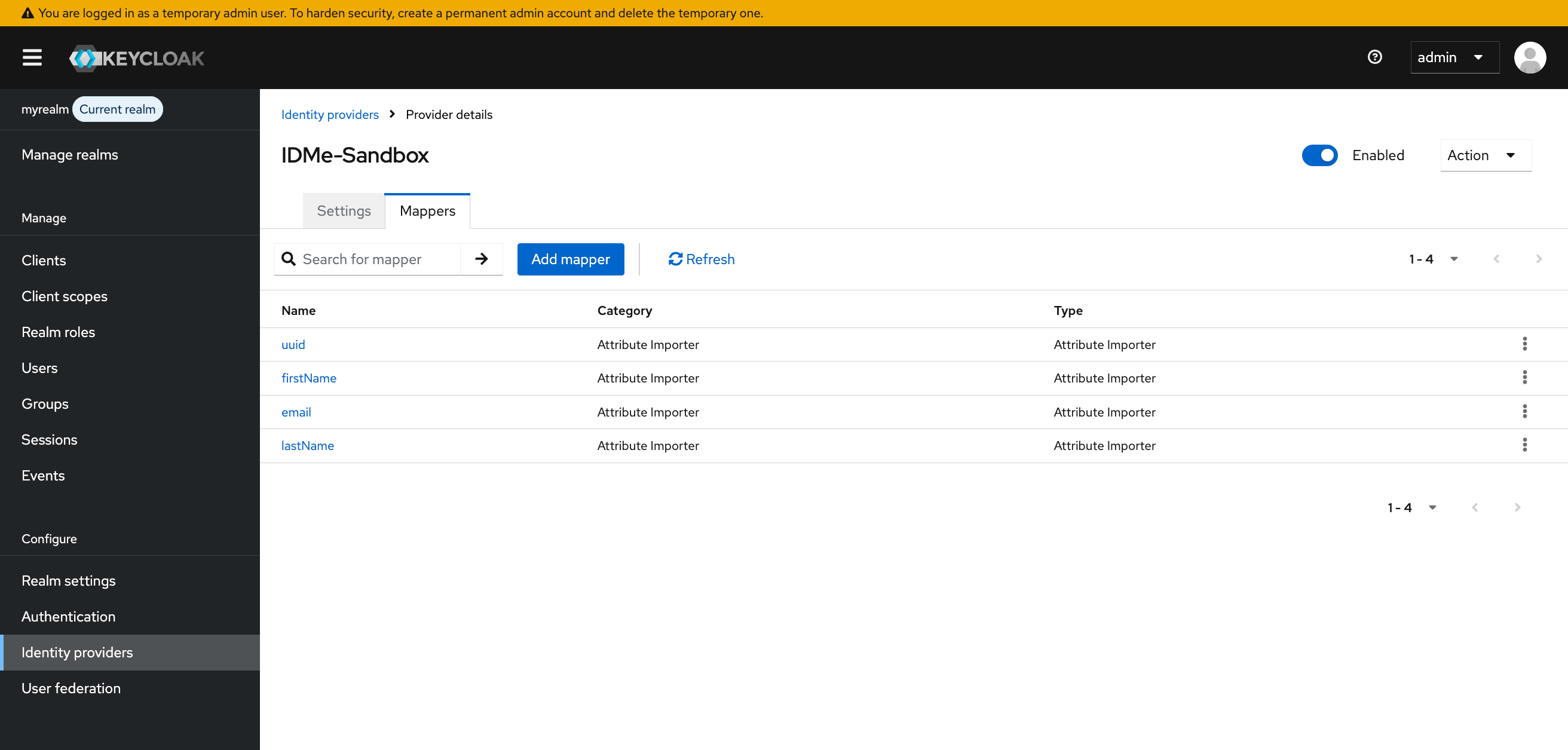
Map user claims
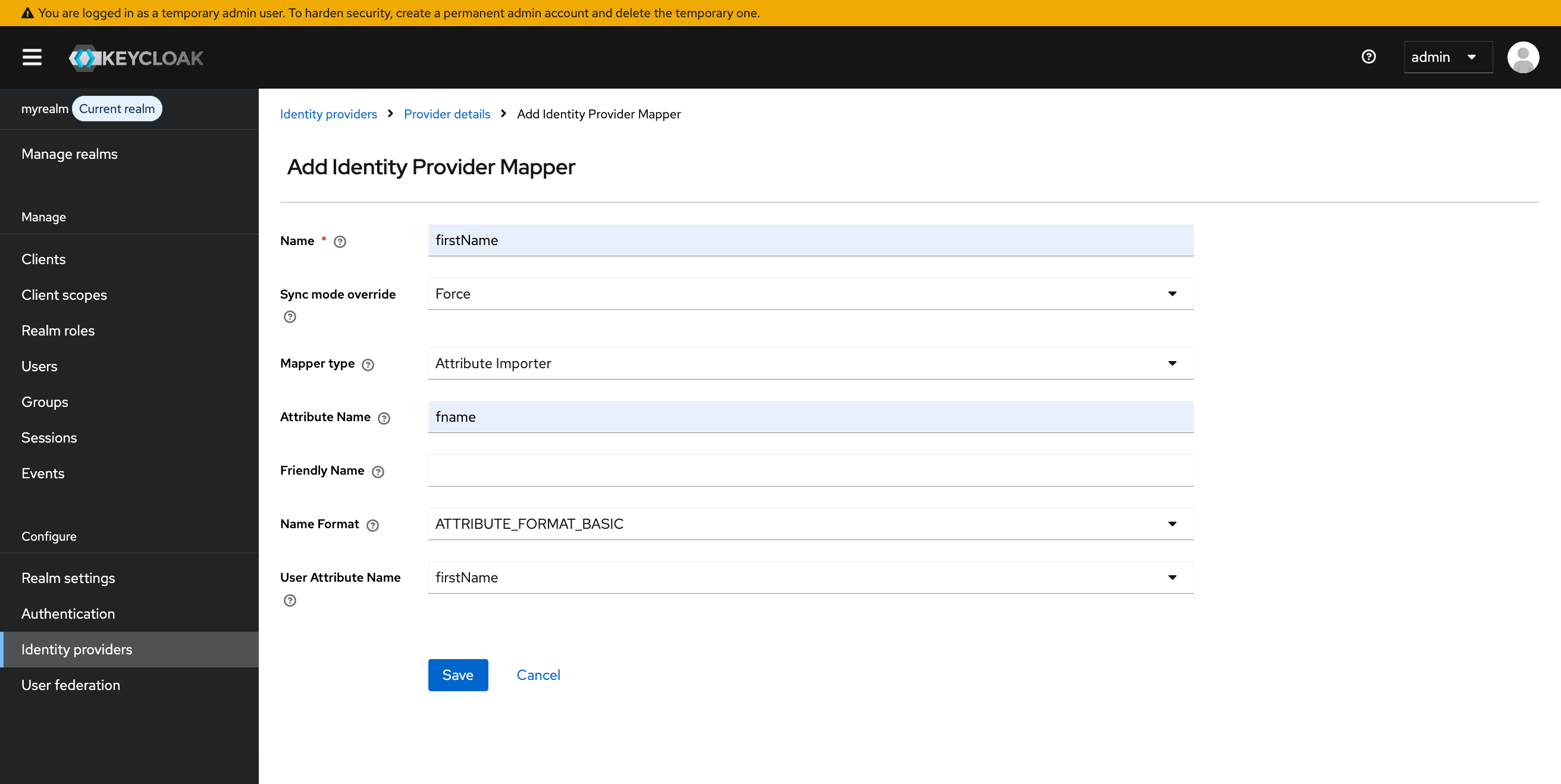
Configure the mapper:
- Name: An identifier for the mapping (for example,
firstName) - Sync mode override: Select
Force(always overwrite from ID.me at login) - Mapper type: Select
Attribute Importer - Attribute Name: Enter the exact SAML attribute name coming from ID.me
- Name Format:
ATTRIBUTE_FORMAT_BASIC - User Attribute name: The attribute in Keycloak that will store the imported value (for example,
firstNameor a custom attribute)
Configure a target app
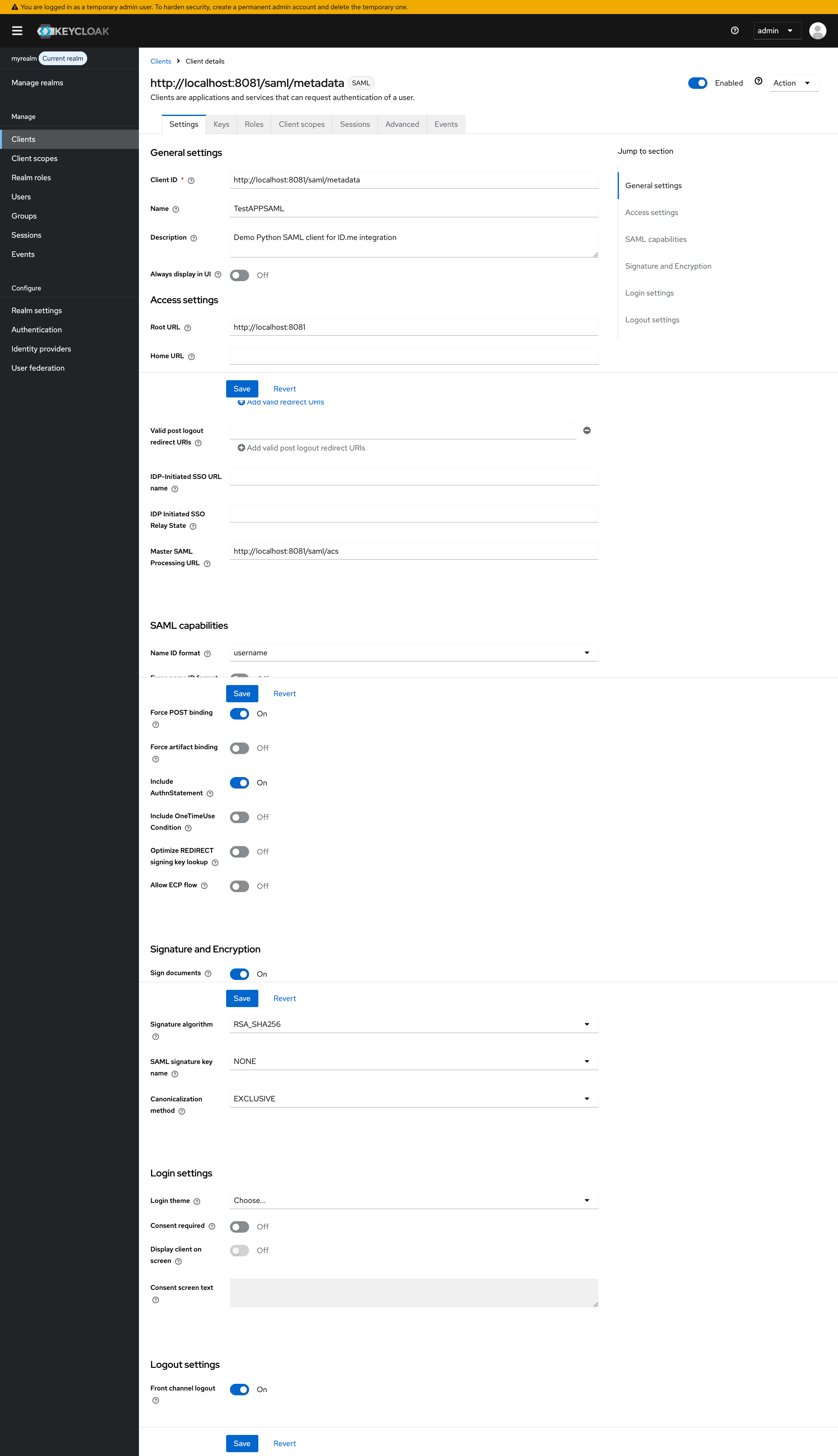
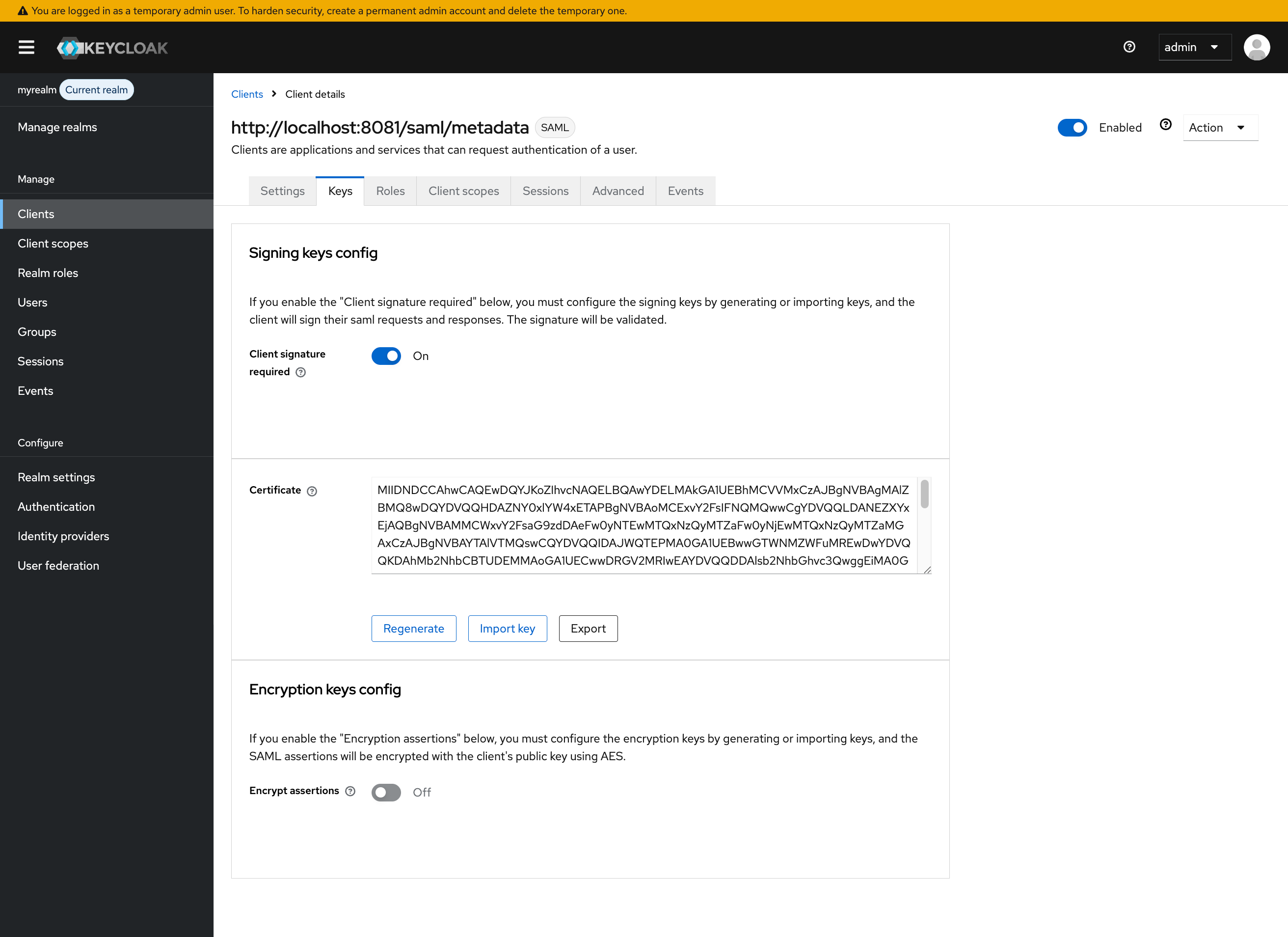
This step registers your SAML service provider (SP) application as a client in Keycloak. Use the entity ID and ACS URL from your SP’s metadata.
The examples in this guide use a custom Python SAML SP demo application for illustrative purposes. It runs locally on port 8081. Substitute your own SP’s entity ID, ACS URL, and base URL where indicated.
Map attributes to the target app
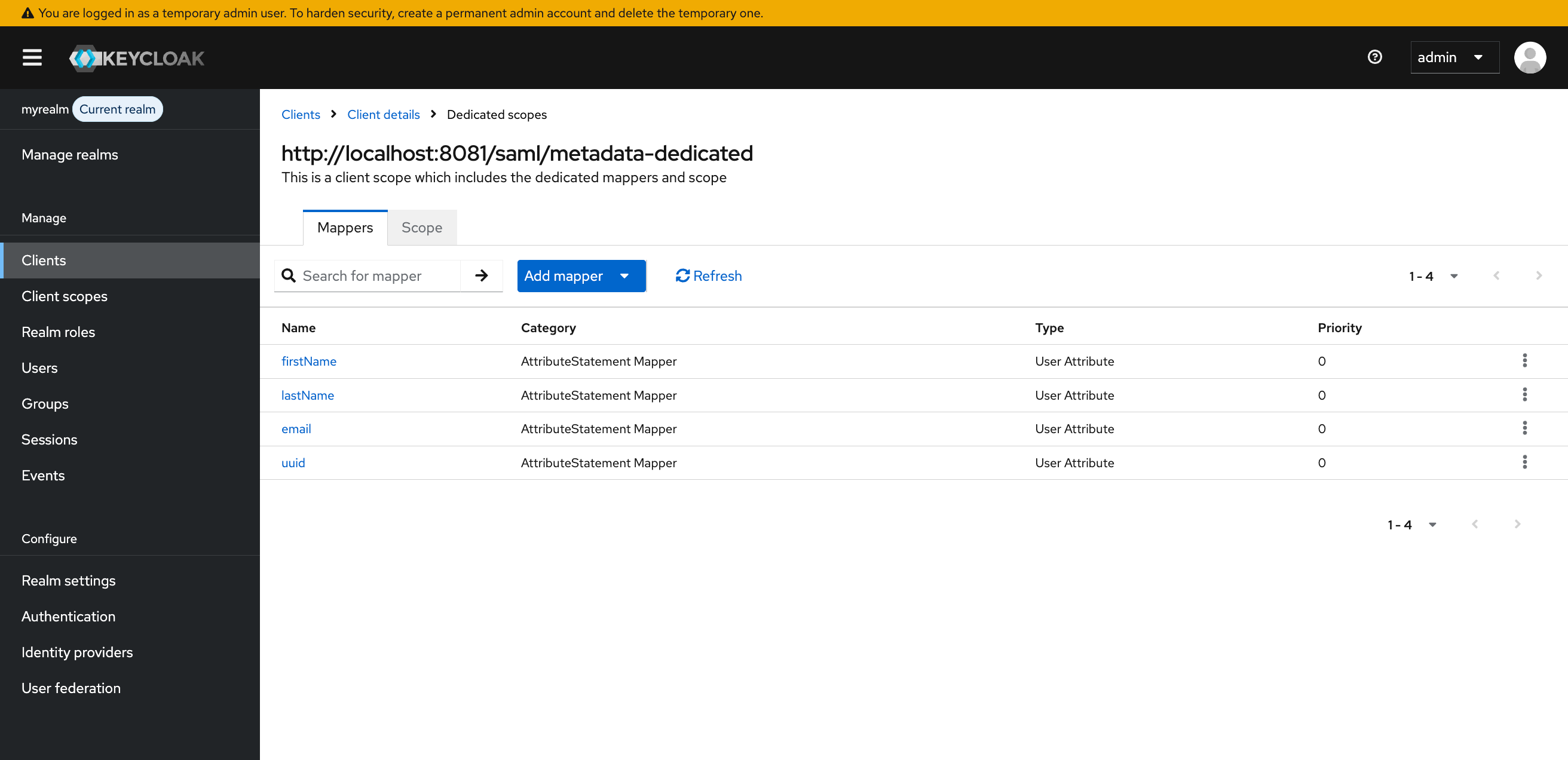
Keycloak does not automatically include user attributes in the assertion it sends to your SP. You must add mappers to the client’s dedicated scope.
If your SP receives a SAML assertion with a duplicate attribute name error, the role_list default client scope may be conflicting with your custom mappers. Navigate to Clients > <your client> > Client scopes and change role_list from Default to None to remove it from this client.
Configure ID.me
This portion of the configuration is completed by an ID.me Solution Consultant. You will need to provide the following information to complete the setup:
Assertion Consumer Service (ACS) URL
The Keycloak ACS URL follows this pattern:
http://localhost:8080/realms/<your-realm-name>/broker/<your external IDP alias>/endpoint
SP Entity ID
The Keycloak SP Entity ID (Handle) follows this pattern:
http://localhost:8080/realms/<your realm name>
Policy handle name
Confirm the ID.me policy handle with your Solution Consultant. This value determines the identity verification level and attributes returned in the SAML assertion, and is configured in Keycloak as your AuthNContextClassRef.
Keycloak signing certificate
You must provide your Keycloak signing certificate (in PEM format) to your Solution Consultant. You can find this in Keycloak under Realm Settings > Keys (Algorithm: RS256, Type: RSA, Use: SIG).
Test the integration
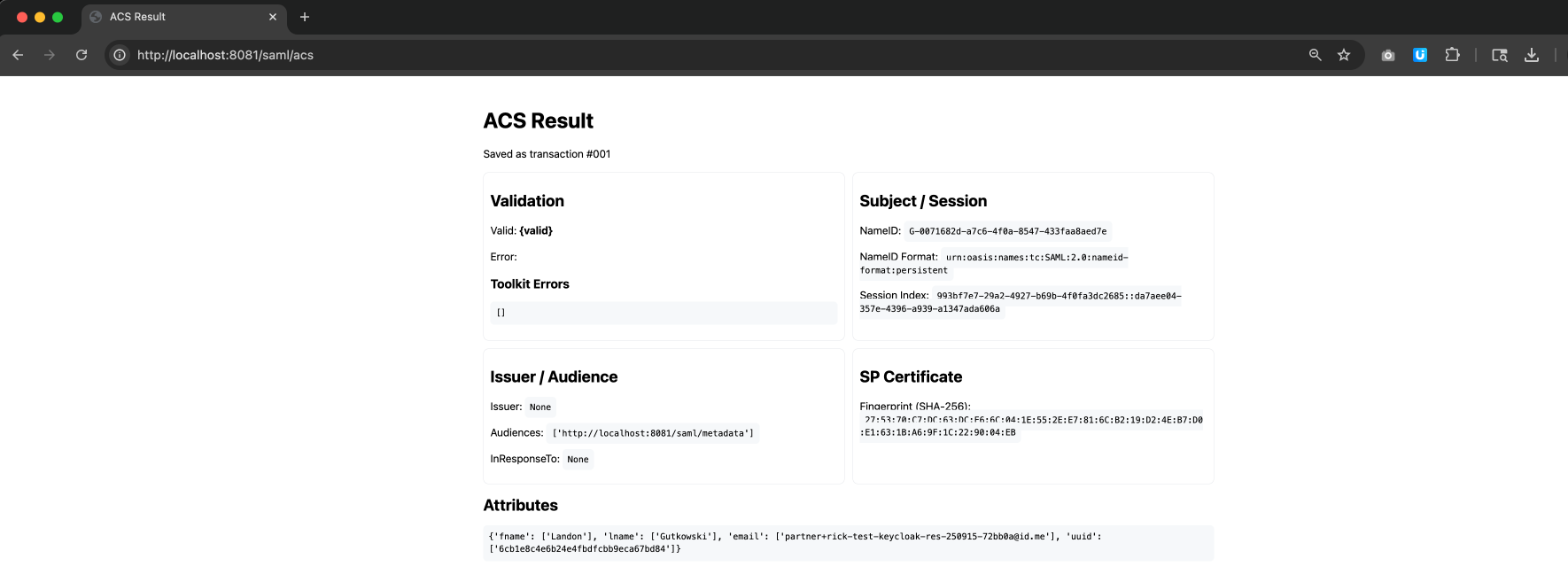
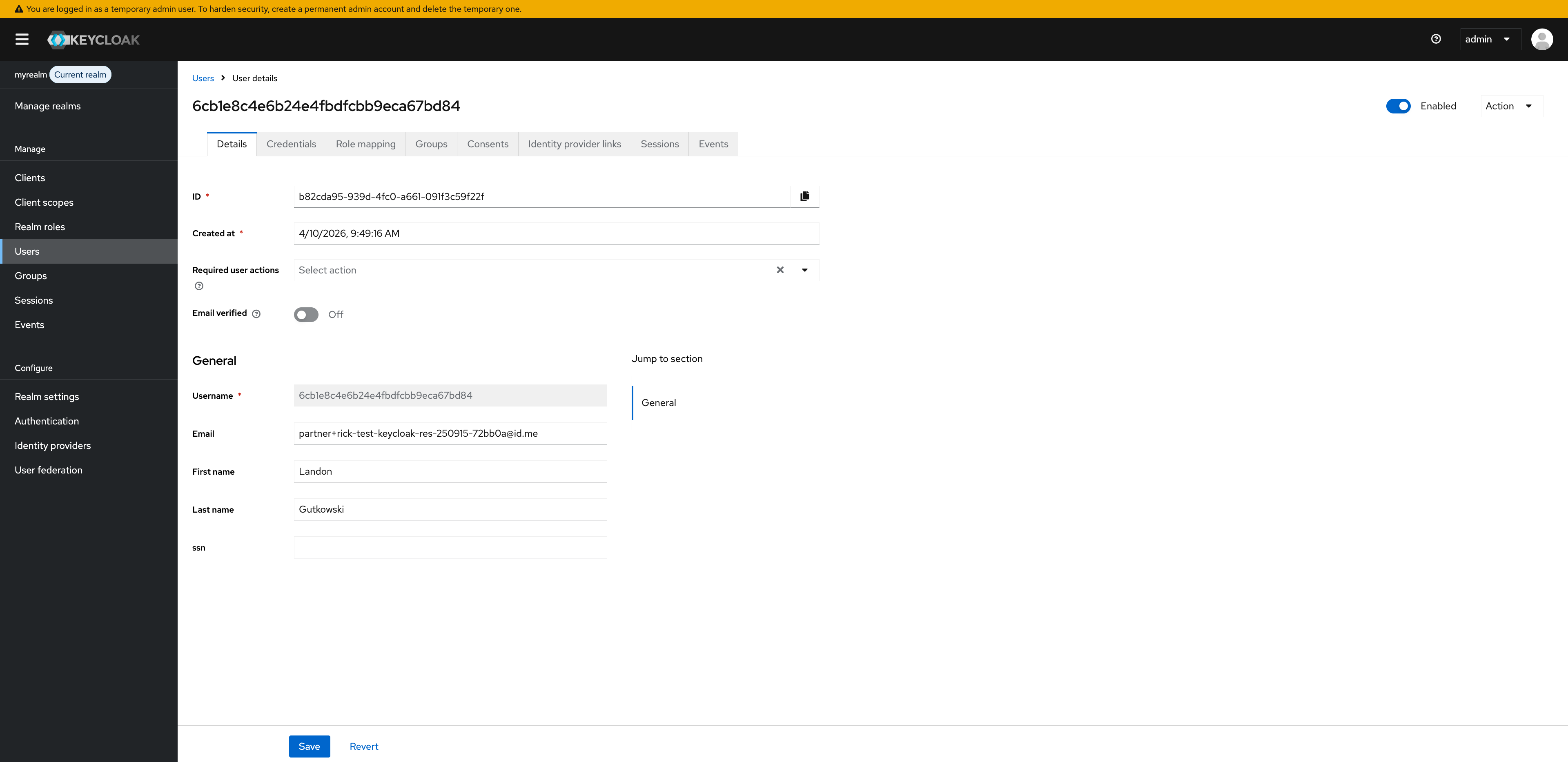
Navigate to your SP’s login initiation URL (for example, http://localhost:8081/initiate?forceAuthn=true in this guide).
Troubleshooting
You do not see your configurations
Always ensure you are in the correct realm. Each time you log in, Keycloak defaults to the master realm.
User not created in Keycloak
This can occur due to missing attribute mappings or a misconfigured login flow. Check your mappers and ensure your “First Login Flow” setting is correct.
Assertion validation failed
This typically happens because of clock skew or an incorrect ACS URL. Check the timestamps and verify the ACS URL in your configuration.
AuthnRequest rejected by ID.me
This often points to a Keycloak signing certificate mismatch. Verify that the certificate uploaded to ID.me matches the active signing certificate in Keycloak under Realm Settings > Keys > RS256.
ID.me assertion not trusted by Keycloak
Keycloak does not evaluate the active=true attribute in ID.me metadata during ingestion of the ID.me metadata and may auto-populate an inactive certificate. In such cases, you must manually enter the ID.me signing certificate labled with the active=true element from the ID.me metadata.
ID.me rejects unsigned request
Keycloak is likely not signing AuthnRequests. Enable Want AuthnRequests Signed on the Identity Provider configuration in Keycloak.
User auto-provisioning on first login
With the default first broker login flow, Keycloak auto-creates users upon their first successful login.
Attribute mappers required for each claim
Keycloak does not automatically map SAML assertion attributes to user fields. You must create a mapper for each attribute you want stored in Keycloak.
Invalid requester error from Keycloak
The Client ID configured in Keycloak does not match the entity ID your SP sends in the AuthnRequest. Verify that the Client ID in Clients > your client > Settings matches your SP’s entity ID exactly (for example, http://localhost:8081/saml/metadata).
Duplicate attribute name error in SP assertion
The role_list default client scope adds a Role attribute that conflicts with custom mappers when attribute names collide. Navigate to Clients > your client > Client scopes and change role_list from Default to None to remove it from this client.
Attributes missing from SP assertion
No mappers are configured on the dedicated client scope, so Keycloak does not include user attributes in the assertion it sends to your SP. Navigate to Clients > your client > Client scopes > the dedicated scope (named after your client entity ID with -dedicated appended) and add a User Attribute mapper for each attribute you want included.