

Microsoft Entra External ID OIDC integration guide
Overview
This guide provides steps to integrate Microsoft Entra External ID (EID) with ID.me using the OpenID Connect (OIDC) protocol.
Intended audience
Developers and IAM administrators responsible for configuring federation between Microsoft Entra External ID and ID.me.
What you will build
A federated authentication flow where Microsoft Entra External ID delegates user authentication to ID.me.
Result
A federated OIDC authentication flow where Entra EID delegates authentication to ID.me.
Identity proofing behavior
Authentication behavior, identity verification settings, and returned attributes are driven by ID.me policy configurations.
Authentication flow
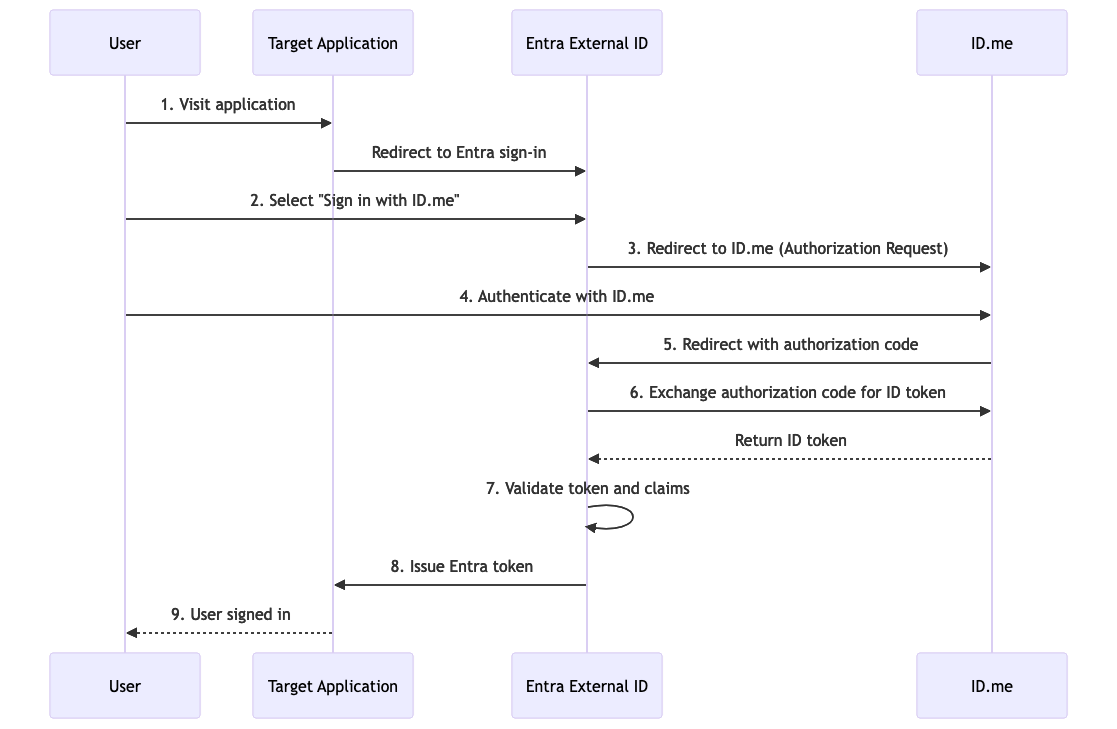
The following steps outline the OIDC authentication flow between the user, Microsoft Entra External ID, and ID.me:
Prerequisites
- Access to a Microsoft Azure account and tenant
- A Microsoft Entra External ID directory created within the tenant
- Administrator permissions to register applications and configure external identity providers
- An ID.me sandbox account for testing your integration
- Understanding of OIDC flows and terminology
- An application to test the sign-in flow (for example, using
https://jwt.msas a relying party)
Environments
ID.me provides two environments:
All ID.me OIDC and SAML endpoints are derived from the base URL above. For production, replace the sandbox base URL in every ID.me endpoint you configure.
Examples
- OIDC issuer (Sandbox):
https://api.idmelabs.com/oidc - OIDC issuer (Production):
https://api.id.me/oidc - SAML metadata URL (Sandbox):
https://api.idmelabs.com/saml/metadata - SAML metadata URL (Production):
https://api.id.me/saml/metadata
Configure Microsoft Entra External ID
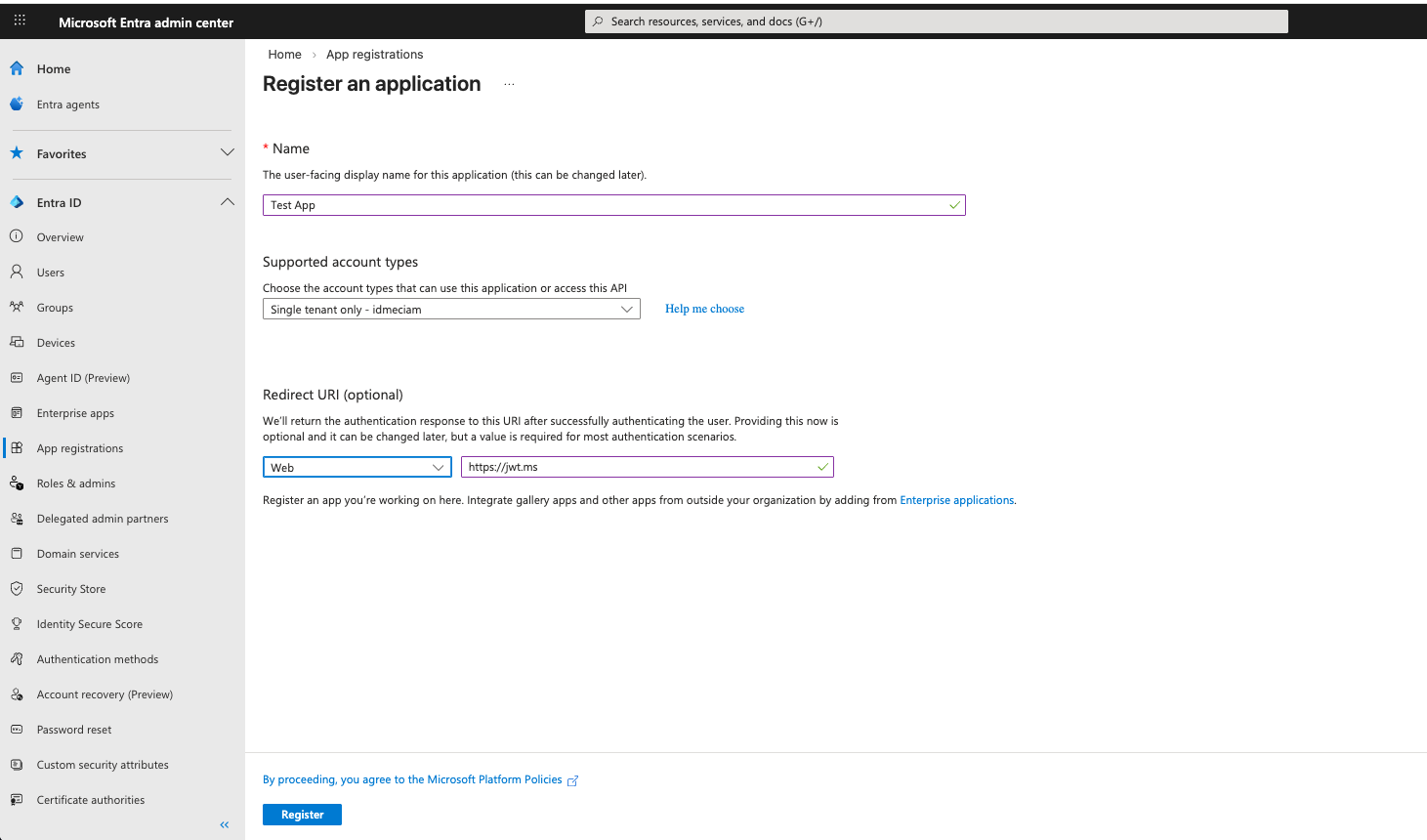
Register your application
Navigate to the Microsoft Entra admin center
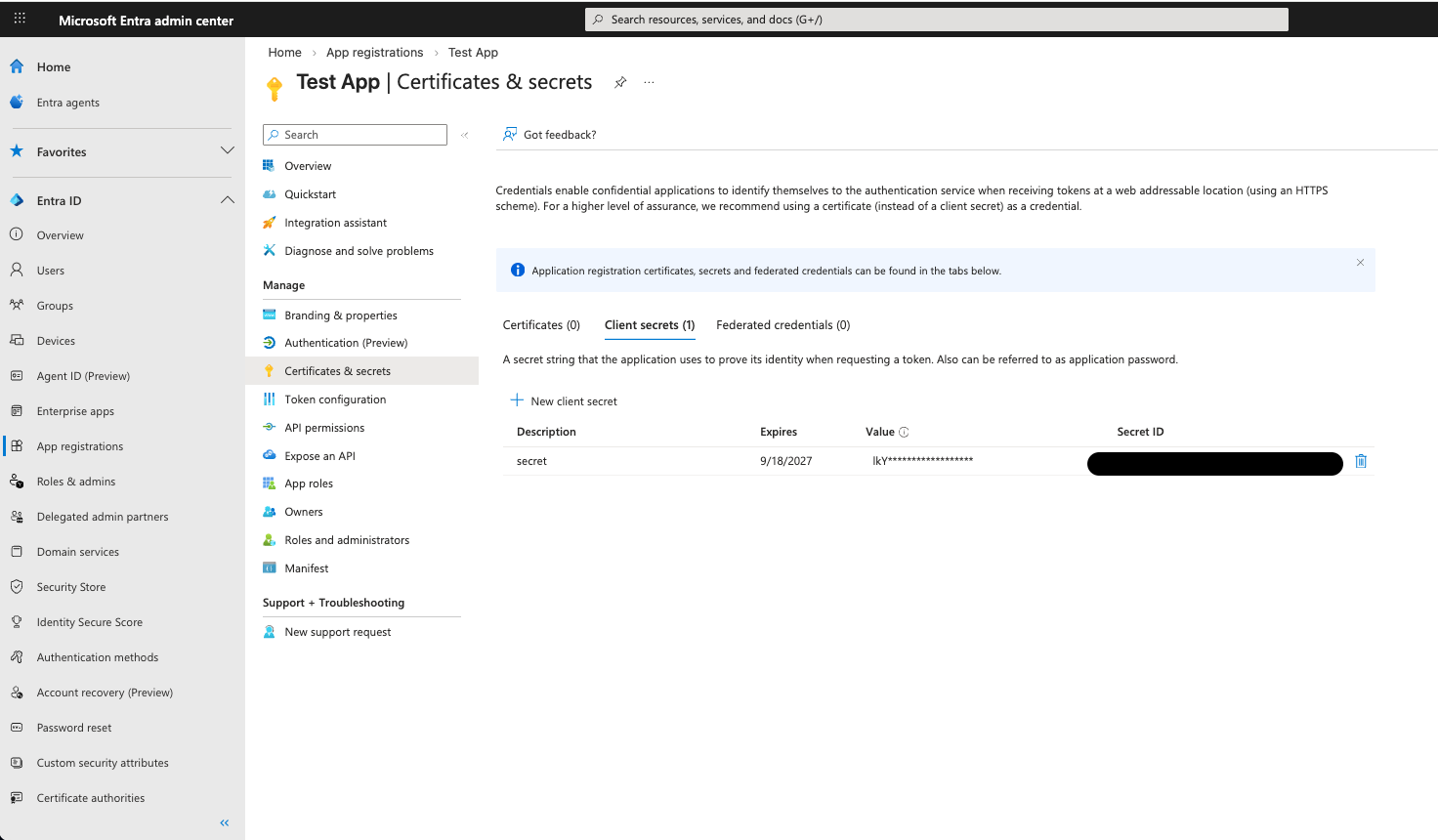
Generate a client secret
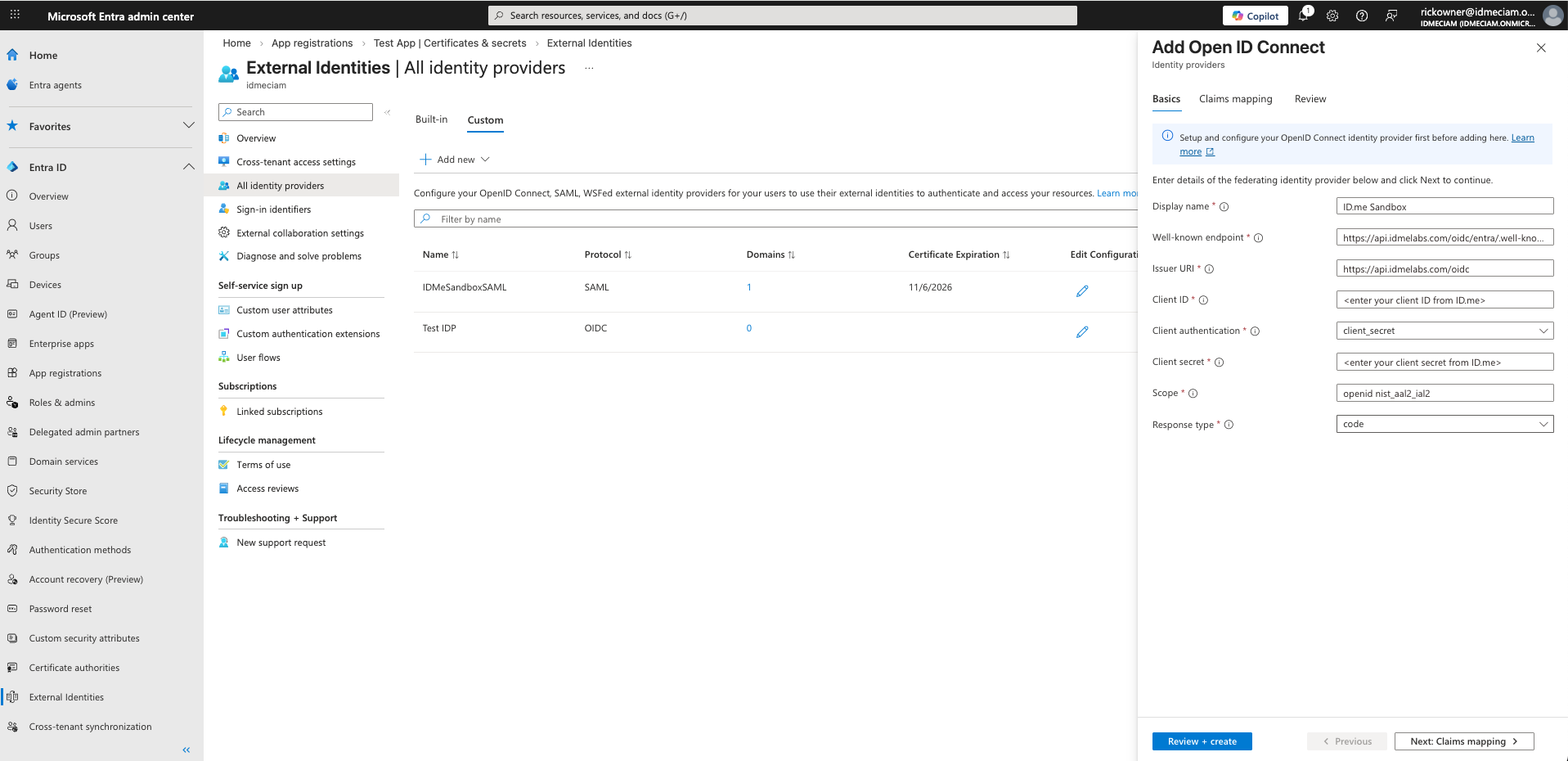
Configure ID.me as an OpenID Connect identity provider
Select the Custom tab, then select Add new > OpenID Connect
Do not use the standard ID.me well-known endpoint. Using the wrong endpoint can prevent the “Sign in with ID.me” button from appearing on the Entra EID hosted login page. Please use the Entra-specific ID.me well-known endpoint configuration URL provided below.
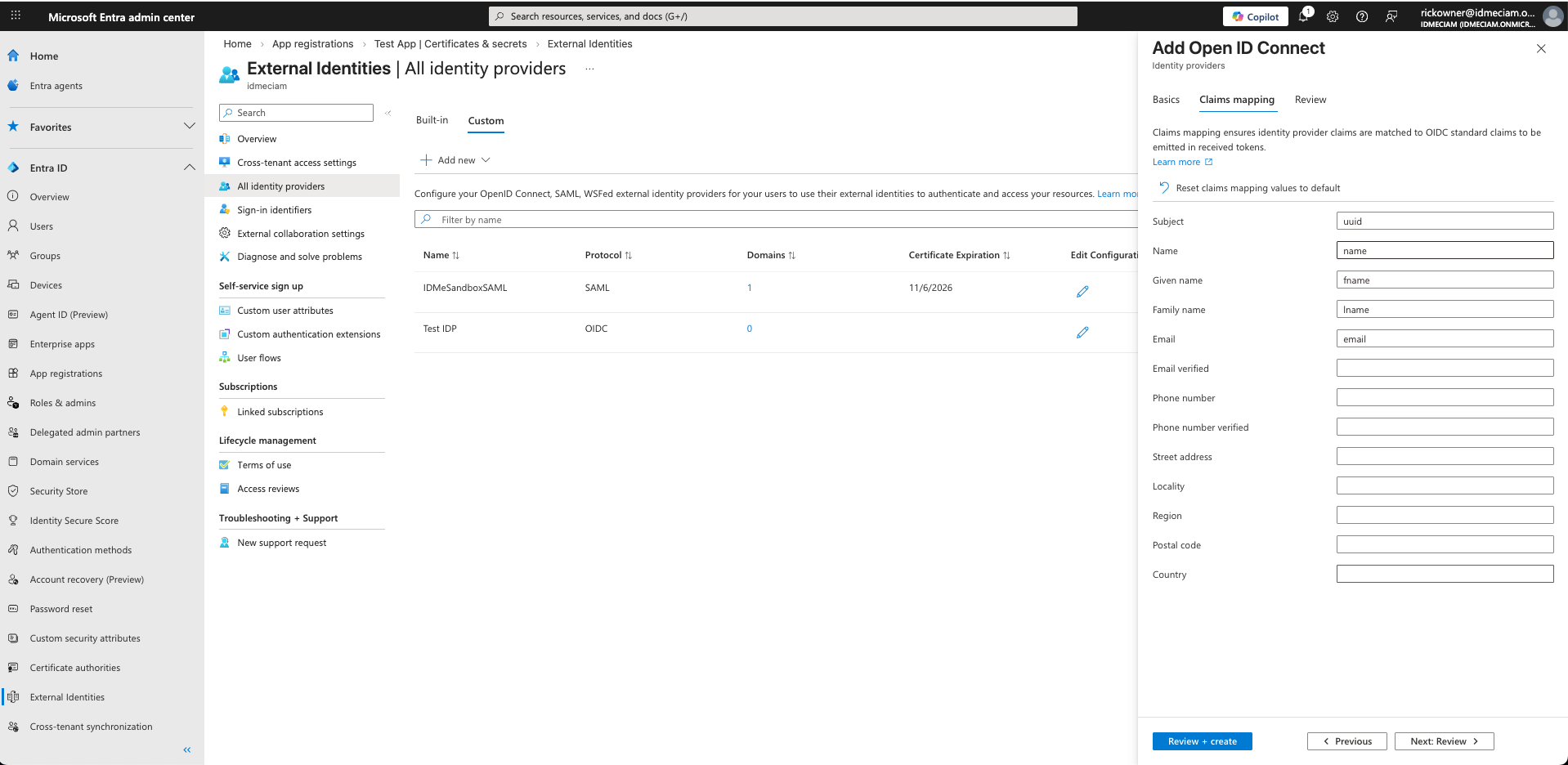
Configure a user flow
Under User attributes, select the attributes you want Entra to populate and emit in the ID token. For federated providers like ID.me, these attributes must first be returned by ID.me (based on scope) and properly mapped in the identity provider configuration before they can be issued to the target application.
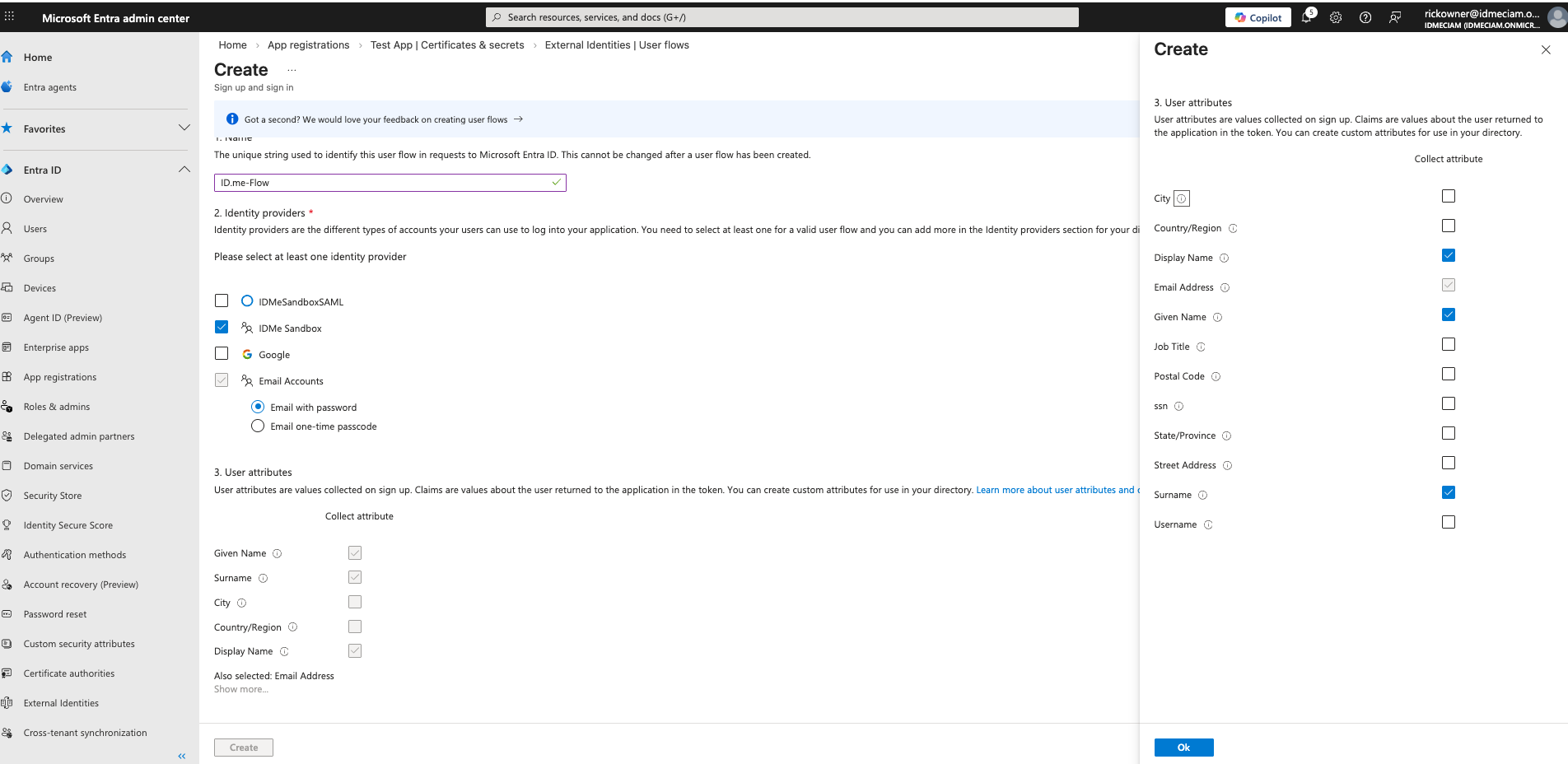
Configure ID.me
This portion of the configuration is completed by an ID.me Solution Consultant. You will need to provide the following information to complete the setup:
Redirect URIs
The Entra External ID redirect URIs typically follow this pattern:
https://<Entra tenant name>.ciamlogin.com/<Entra tenant GUID>/federation/oauth2
Microsoft Entra may normalize domains differently, so providing the primary domain and this variant may be required:
https://<Entra tenant name>.ciamlogin.com/<Entra tenant GUID>.onmicrosoft.com/federation/oauth2
Policy handle name
Confirm the ID.me policy handle (e.g., nist_aal2_ial2 or teacher). This value is included in the OIDC scope parameter along with openid and is forwarded by Entra to ID.me.
Test the integration
Two options are available when testing the integration:
Option 1: Run user flow via Entra
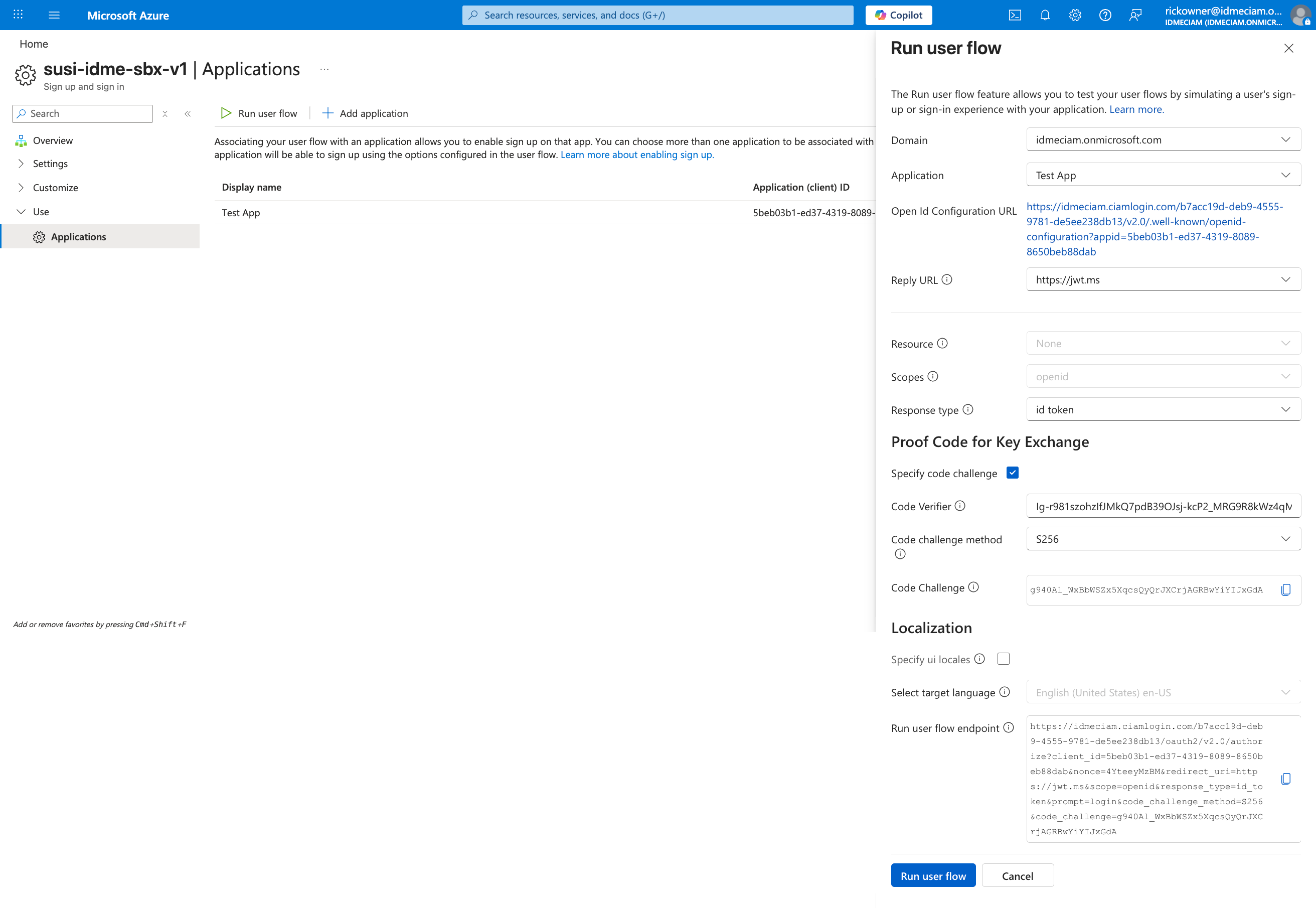
Option 2: Manually construct URL
Copy the authorization request URL from the lower-right corner of the page, paste it in a text editor, edit the scope parameter as needed, and paste the modified URL into your browser.
Update the scope to:
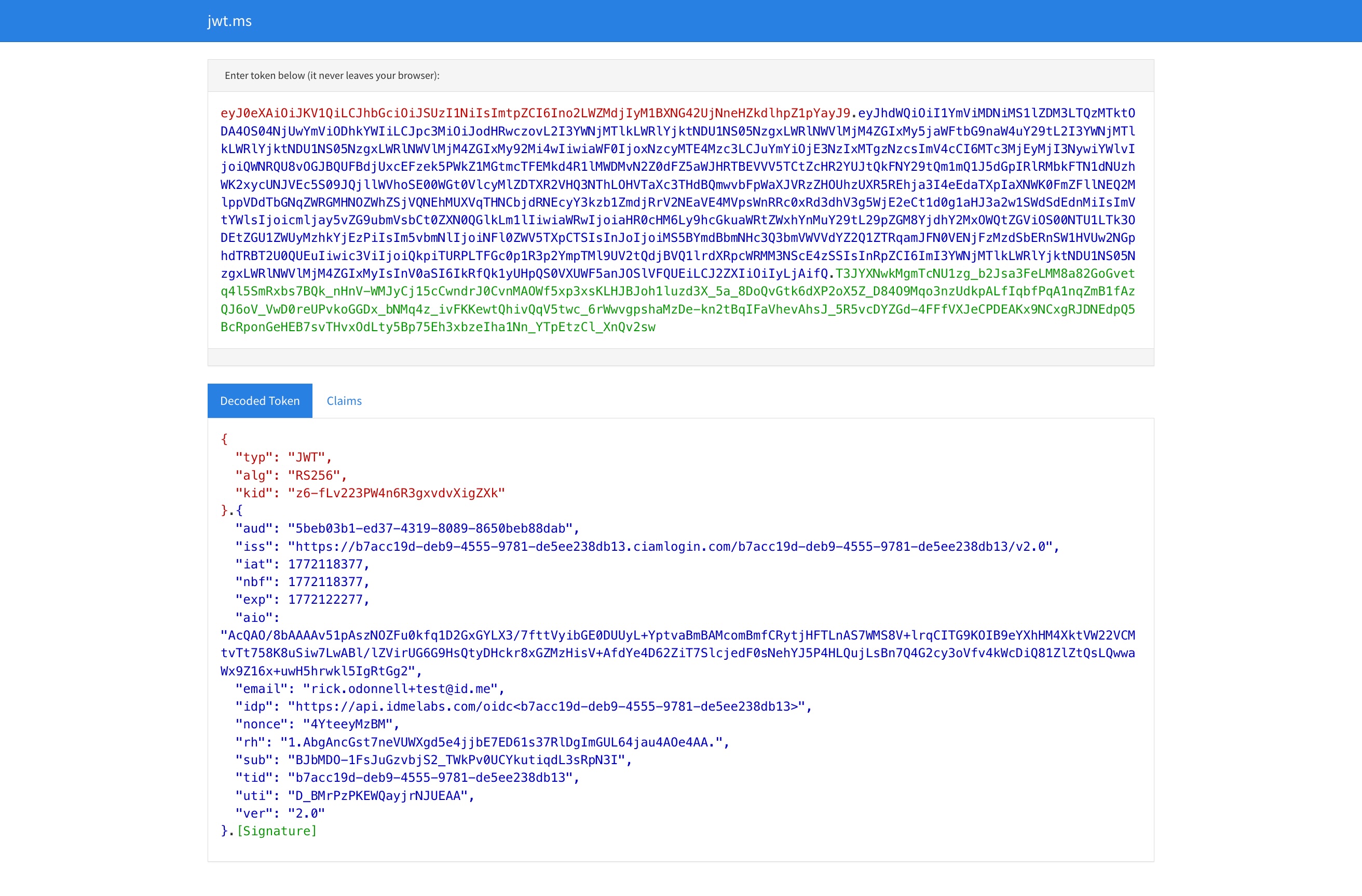
Adding profile ensures first name and last name claims are included in the ID token sent to the application from Entra EID.
These OIDC scopes are separate from the ID.me policy handle values configured in the Entra External ID custom OIDC settings
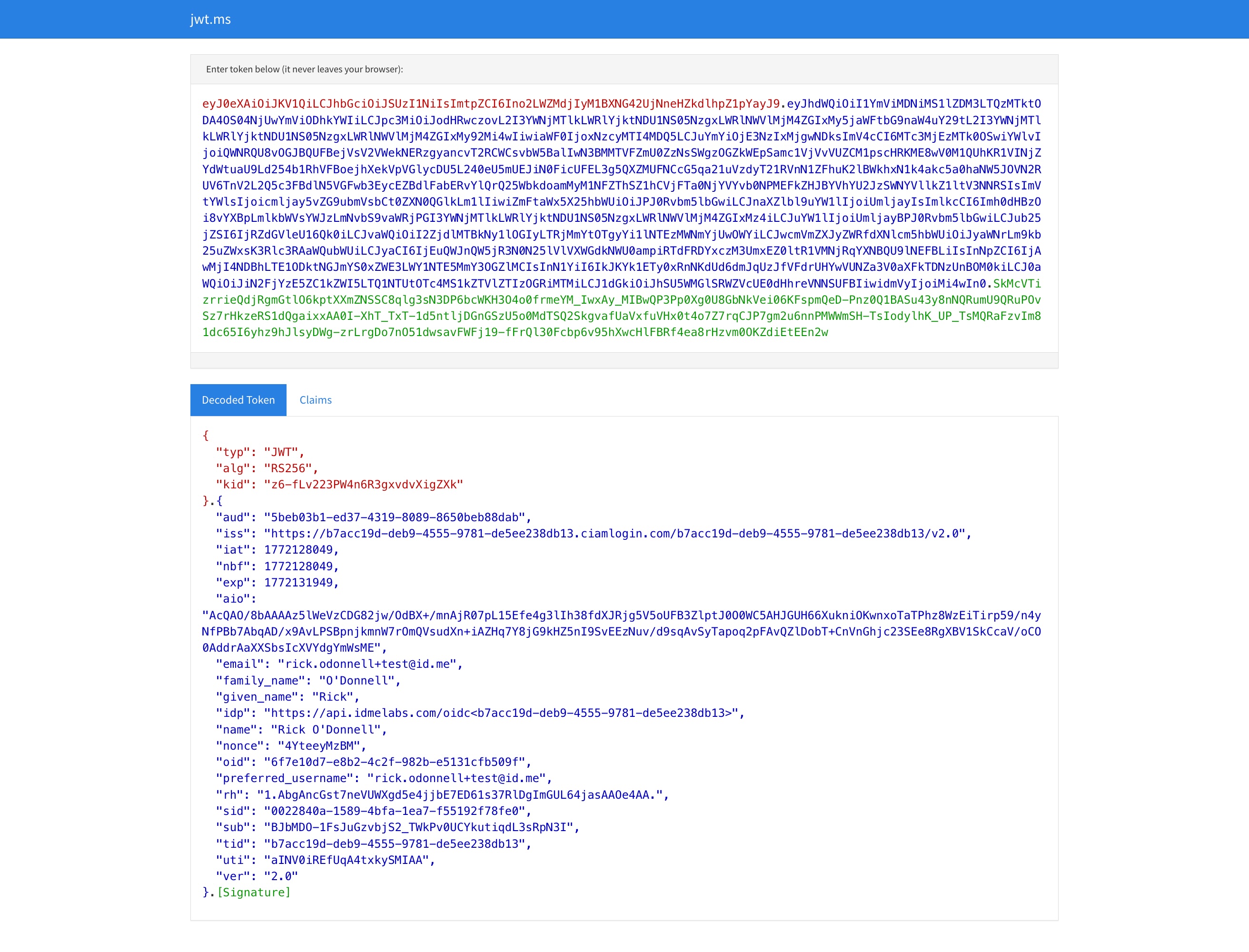
If you are using https://jwt.ms as your target app, the result will look similar to the following:
Troubleshooting
AADSTS900144 Error
If you receive this error after returning from ID.me, check that the policy handle in ID.me matches the scope value in the Entra Identity Provider configuration (e.g. ID.me could have nist_aal2_ial2 and Entra should therefore have openid nist_aal2_ial2).
Sign in with ID.me button is not appearing
Ensure you are using the Entra-specific well-known endpoint (.../entra/.well-known/openid-configuration). The standard ID.me endpoint will not work for Entra integrations.