

Mock document verification
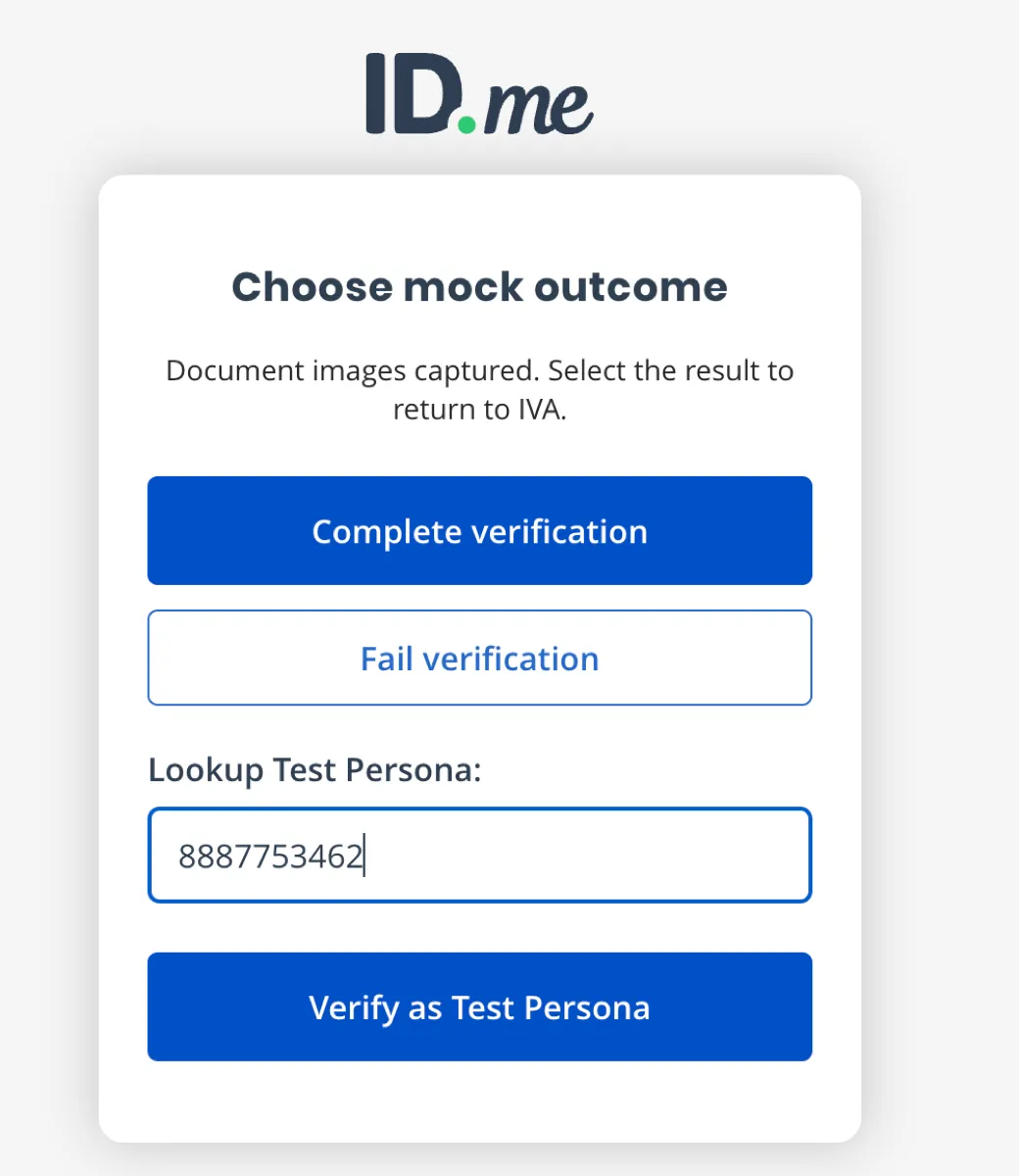
The Legal ID SDK mock lets you test the document verification flow from start to finish without a real ID. The mock goes through the same steps as the production SDK, including the camera permission request and the front and back capture. Then you choose the result to return: pass, fail, or a specific test persona.
The mock is only available in sandbox. Never use real personal information or real identity documents when testing.
Enable mock mode
Mock mode is set for each integration. When it is on, ID.me loads the mock SDK instead of the production SDK. Your integration code does not change. Contact your ID.me account manager to turn on mock mode for your sandbox integration.
Go through the mock flow
Start verification
Start a verification that requires a legal ID. The mock opens on the same start screen as the production SDK. It also adds a Skip Camera link.
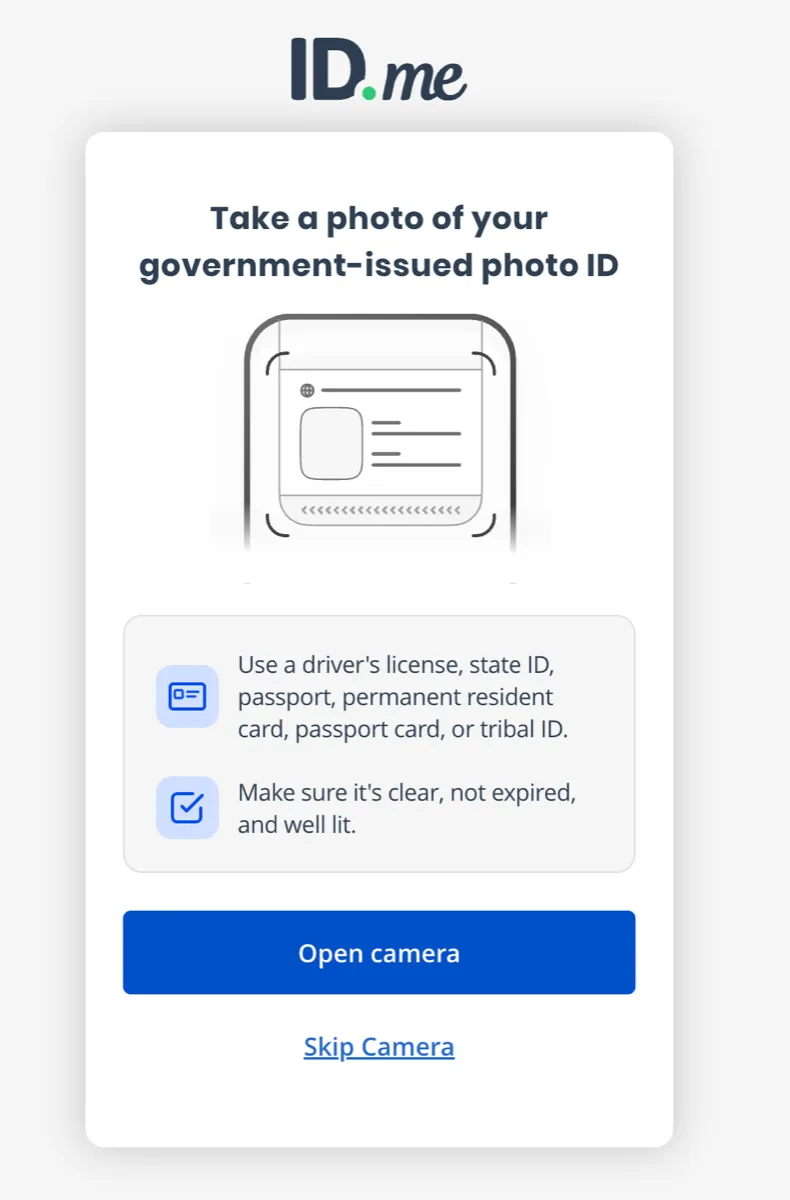
- Select Open camera to go through the camera permission and capture steps.
- Select Skip Camera to go straight to Choose a mock outcome. Use this option on devices without a camera or in automated tests.
Allow camera access
When you select Open camera, the browser asks for permission to use the camera. The mock only asks for the camera, not the microphone.
- If you allow access, a live camera preview opens.
- If you deny access, the SDK returns the
camera_permission_deniederror. - If the camera is missing or cannot be read, the SDK returns the
doc_capture_failederror.
Capture the front and back of the ID
Hold any card up to the camera and select Capture front, then Capture back. The mock does not read or keep these images. You can capture anything.
See Images ›Hide Images ⌄
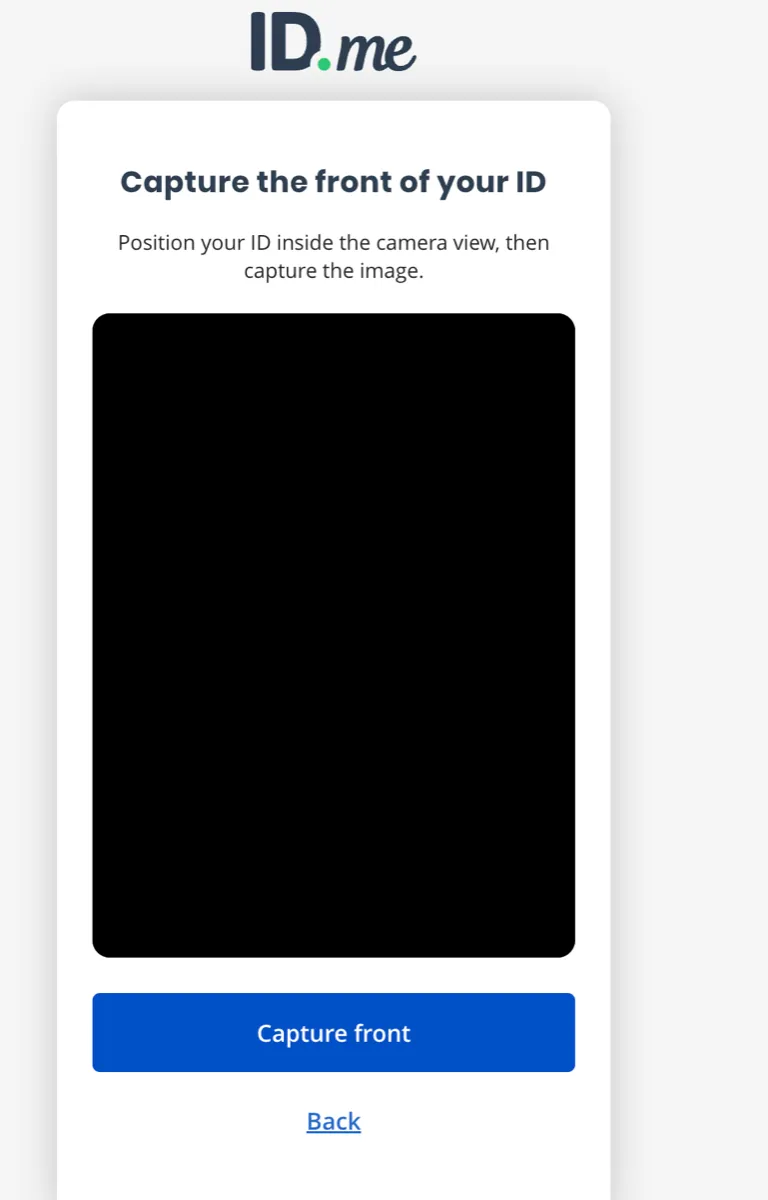
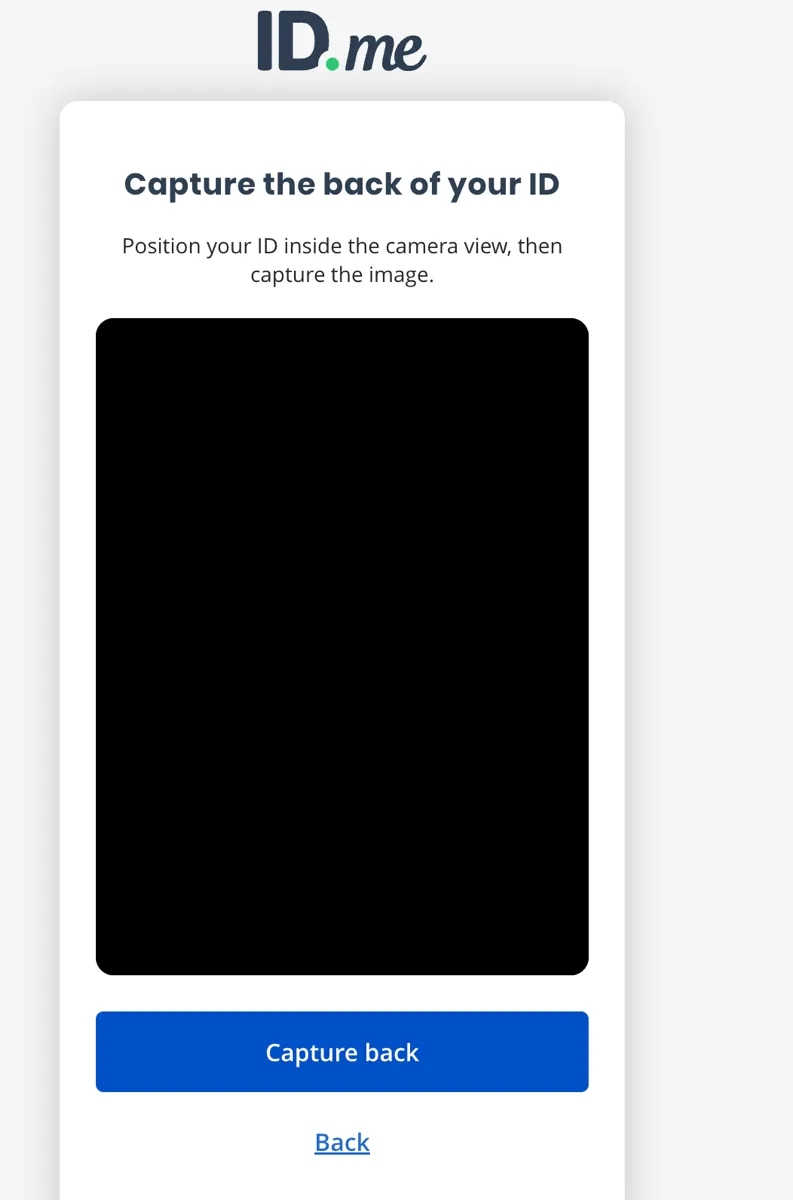
Select Back at any time to return to the start screen and start over.
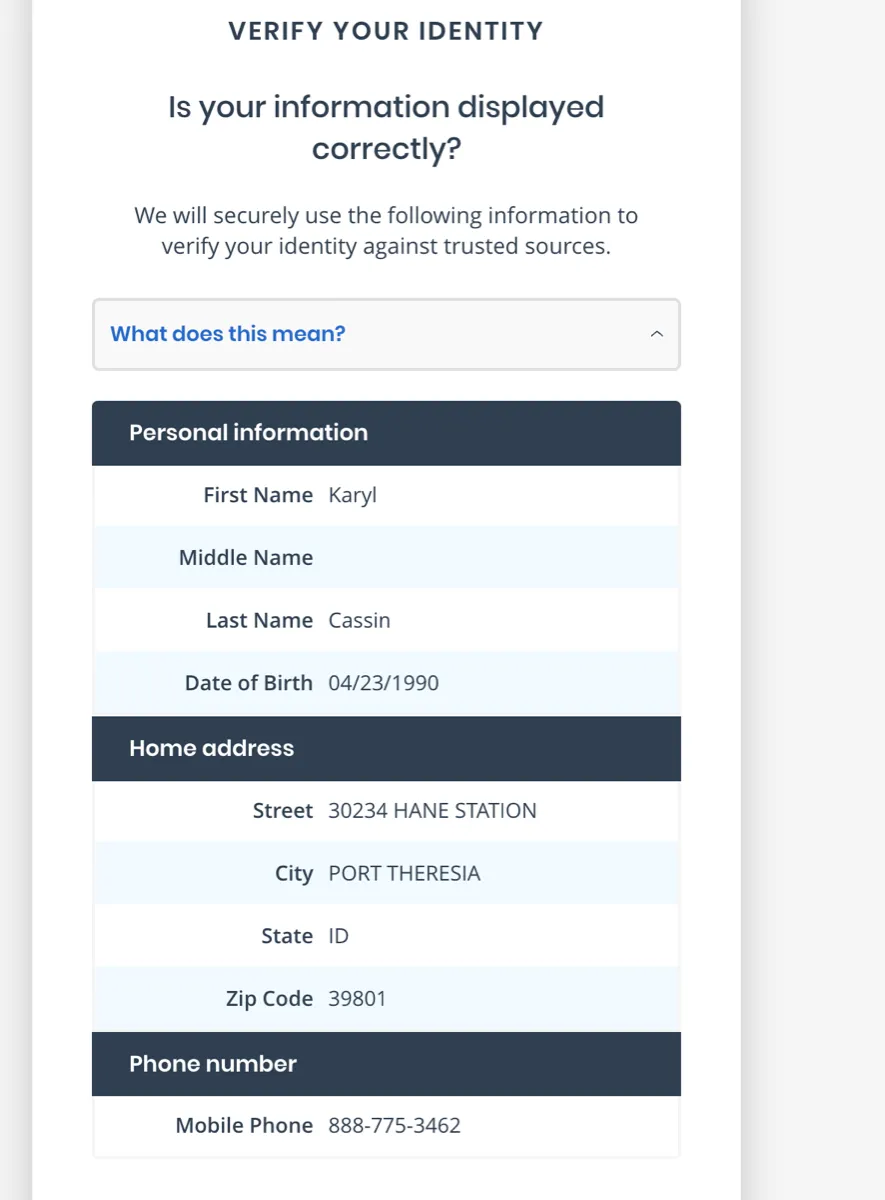
Return a specific test persona
To test with a specific identity, enter a persona’s phone number in Lookup Test Persona and select Verify as Test Persona. The button stays off until the field has at least one digit.
ID.me removes spaces, dashes, and parentheses from the number before it looks for a match. So (888) 789-1962, 888-789-1962, and 8887891962 all find the same persona.
In the SDK mock, every matching persona succeeds, including the scenario and generic failure personas. Only the persona’s identity data is used. To test a failure, use a phone number that starts with 999. Persona scenarios apply to mock document uploads.
To get a specific error, start the phone number with 999 and end it with one of these codes. For example, 9995552002 returns document_expired. If the last four digits do not match a code, ID.me picks one of these errors at random.
Mock residency documents
Some flows ask the user to prove where they live, for example with the Prove your residency another way option. In sandbox, these uploads are mocked too. The name of the uploaded file decides the result, just like the Services API document mocks.
The file name is not case sensitive, and the file extension does not matter. For example, SUCCESS.png and fail.pdf both work. If you upload more than one file and any of them is named fail, the document is denied.
Pick a persona with a file name
To get a specific test persona from a mock ID document upload, name the file with the persona’s phone number, for example 8887891962.jpg. To give the file a more useful name, put an underscore after the phone number, for example 8887891962_front.jpg. ID.me only uses the part before the first underscore to find the persona.
For a document upload, ID.me uses the persona’s identity data and its scenario. For example, 8884175429.jpg returns Javier Medhurst with the expired document outcome. If you also upload a file named success or fail, that file name decides the result instead of the persona’s scenario.
If no file name matches a persona, ID.me returns the default persona.
The default persona is Veronica Persinger (8889413032). See the full list on the test personas page.
Error codes
These are the errors you can get from the mock. Use them to test how your app handles errors.